Quantcast
Channel: Troubleshooting - PowerObjects
Viewing all 98 articles
Browse latest View live

CRM 2011 Unable to Switch Forms with Script Error – The value of the property ‘openUrlByCrmUrl’ is null or undefined

$
0
0

For the latest updates to this post please visit the original posting here: CRM 2011 Unable to Switch Forms with Script Error – The value of the property ‘openUrlByCrmUrl’ is null or undefined

So from time to time we run into little issues I know others will encounter – hope this helps someone else out there!!

We recently ran into an error on organizations where multiple forms had been configured for entities in Internet Explorer and the other forms would not load/switch.

The script error in Internet Explorer stating “”The value of the property ‘openUrlByCrmUrl’ is null or undefined, not a Function object” when trying to switch between forms on the “Opportunities” and “Account” entities on multiple organizations within our CRM 2011 deployment.

We could see that the values were properly being passed to the form.js file, however we determined that the problem turned out to be that OpenUrlByCrmUrl was undefined.  Further debugging indicated that we were failing at the global.js file.

After Microsoft reviewed the global.js file, it was discovered that it indeed did not have the expected OpenUrlByCrmUrl code in place.

The OpenUrlByCRMUrl was added in UR1, however it was not added to the file in our deployment because the global.js file was modified.  As it was modified, CRM’s update rollups are unable to update it to include the necessary code, even though our CRM 2011 server had UR2 in place.

To resolve the issue, we were able to replace the global.js file at C:Program FilesMicrosoft Dynamics CRMCRMWeb_static_commonscripts with a clean one from a UR2 deployment.  After this, I ran an IISRESET and cleared IE cache, and the issue was resolved.

CRM Experts – PowerObjects

Happy CRM’ing

The post CRM 2011 Unable to Switch Forms with Script Error – The value of the property ‘openUrlByCrmUrl’ is null or undefined appeared first on PowerObjects.
Microsoft Releases the CRM 2011 Outlook Client Troubleshooting Wizard

$
0
0

For the latest updates to this post please visit the original posting here: Microsoft Releases the CRM 2011 Outlook Client Troubleshooting Wizard

Great news!! This week Microsoft released the Microsoft Dynamics CRM 2011 Outlook Client Troubleshooting Wizard for configuration.

The Microsoft CRM 2011 Outlook client configuration troubleshooting wizard can be used to help find the most likely solution for an error in the Configuration Wizard. The wizard also helps you to identify and fix the problem that’s preventing the computer from connecting.

The wizard is really easy to use and is for both the CRM Online and On Premise environments.  The wizard contains screen shots and solutions for known configuration issues with the CRM client.

The wizard can be accessed with the following link — http://rc.crm.dynamics.com/rc/2011/en-us/online/5.0/outlook-troubleshooting.aspx

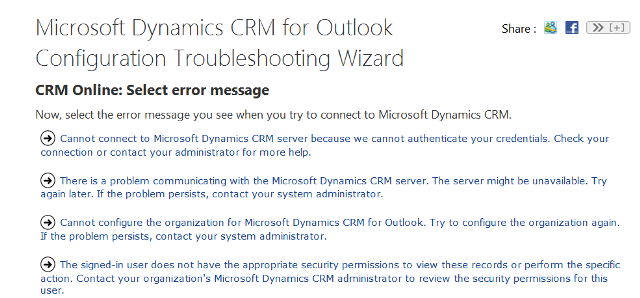
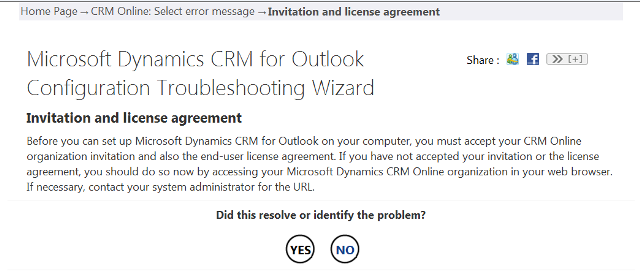
Here are some sample screenshots of the interface:

Microsoft Dynamics CRM 2011 Troubleshooting Wizard

Microsoft Dynamics CRM Troubleshooting Wizard

Microsoft Dynamics CRM Troubleshooting Wizard

We are pretty excited about this here at PowerObjects. Let us know what think by commenting.

Happy CRM’ing!

The post Microsoft Releases the CRM 2011 Outlook Client Troubleshooting Wizard appeared first on PowerObjects.

Can’t Access Organizations after CRM 2011 Update Rollup 10? Here’s a Fix

$
0
0

For the latest updates to this post please visit the original posting here: Can’t Access Organizations after CRM 2011 Update Rollup 10? Here’s a Fix

You may already be taking advantage of some of the changes in the CRM 2011 Update Rollup 10, including being able to optimize performance of CRM 2011 quick find queries. However, after installing Update Rollup 10 for Microsoft Dynamics CRM 2011, you may experience a problem where none of your organizations are accessible. That’s what we’re going to cover in this post.

When attempting to login, you will see the following screen:

An error has occurred.

Try this action again. If the problem continues, check the Microsoft Dynamics CRM Community for solutions or contact your organization’s Microsoft Dynamics CRM Administrator. Finally, you can contact Microsoft Support.

System.NullReferenceException: Object reference not set to an instance of an object. at Microsoft.Crm.MainApplication.Application_Error(Object sender, EventArgs eventArguments)

Additionally, when looking at the event viewer, you will notice the following entry under a warning for ASP .NET:

Exception information:

Exception type: MissingMethodException
Exception message: Method not found: ‘Boolean Microsoft.Crm.Sdk.Query.FilterExpression.get_IsQuickFindFilter()’.

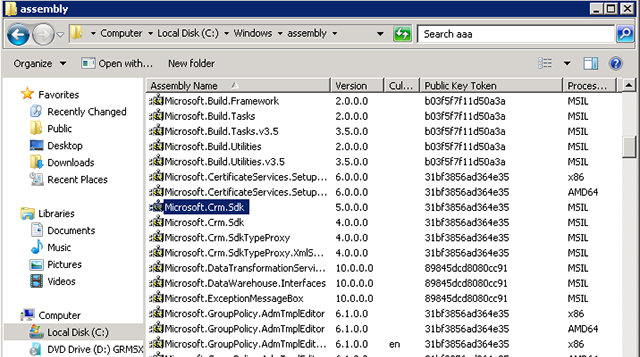
This error means that it looks in the DLL and can’t find the specific method. The first thing to check is your GAC. Open c:\windows\assembly, and look for Microsoft.crm.sdk. If you have 2 entries for this specific dll, you may need to remove the 5.0 version.

Update Rollup 10 error -- check for DLL duplication

Right click on Microsoft.Crm.Sdk 5.0.0.0 version, and uninstall. Then do an iisreset, and CRM 2011 should be operational again. That’s it. That wasn’t so bad, was it?

Happy CRM’ing!

The post Can’t Access Organizations after CRM 2011 Update Rollup 10? Here’s a Fix appeared first on PowerObjects.

CRM 2011 Outlook Client Error: Exporting a Report Hangs

$
0
0

For the latest updates to this post please visit the original posting here: CRM 2011 Outlook Client Error: Exporting a Report Hangs

When encountering any CRM 2011 Outlook Client error, you can begin your troubleshooting using the CRM 2011 Outlook Client Troubleshooting Wizard, but in this blog post we’ll cover a specific issue. After installing Security Update for Microsoft Windows (KB2699988), CRM 2011 reports will no longer export from CRM Outlook Client. There is no error message, and when you click export to any type nothing happens.

The issue with CRM Outlook Client exporting reports after installing the security update is a known issue and the fix may be included in Update Rollup 12.

Until the permanent fix is released you can use one the available workarounds:

  1. Have the client use the Web Version to export reports.
  2. Remove the Security Update for Microsoft Windows (KB2699988)–NOT recommended!
  3. The recommended change would be to make the registry change below. Here are the steps to do so:

1. Open the registry (regedit)

2. Go to HKEY_LOCAL_MACHINE\SOFTWARE\Wow6432Node\Microsoft\Internet Explorer\MAIN\FeatureControl\FEATURE_MIME_HANDLING

3. Change the DWORD entry for OUTLOOK.EXE from 1 to 0

4. Restart Outlook

CRM 2011 Outlook client error

As always, make sure to back up your registry prior to making this change. Refer to this Microsoft article titled Back up the registry.

If you’re looking for some additional information regarding CRM end-user configuration, check out CRM 2011 Tools and Settings for End Users That Increase Efficiency.

Happy CRM’ing!

The post CRM 2011 Outlook Client Error: Exporting a Report Hangs appeared first on PowerObjects.

CRM 2011 Outlook Client Tracing: How to Perform a Trace

$
0
0

For the latest updates to this post please visit the original posting here: CRM 2011 Outlook Client Tracing: How to Perform a Trace

When troubleshooting the Outlook client for Microsoft Dynamics CRM,
sometimes you need to perform a trace. And by trace, we don’t mean putting a piece of paper up on your monitor and drawing an outline of Outlook.

Performing a trace “collects a detailed profile of all operations that occur inside CRM for Outlook,” and it can be helpful troubleshooting support issues. It’s not something we want turned on indefinitely, because it can slow the system down.

Here are the steps on performing a trace on a local machine within the Outlook client for Microsoft Dynamics CRM 2011.

1. Go to ‘All Programs’.

2. Click to expand ‘Microsoft Dynamics CRM 2011 / Diagnostics

3. Choose the tab ‘Advanced Troubleshooting’. You will need to delete any previous files that contain data captured previously, so select ‘Delete’.

4. Then, turn ‘Tracing’ on.

5. Next, ‘Enable’ tracing.

CRM 2011 Outlook Client Tracing

6. Once Tracing is turn on, select ‘Save’.

7. Execute the transaction within Microsoft CRM Outlook client to capture trace information.

8. From the ‘Start’ option within your Operating System, click to expand ‘Microsoft Dynamics CRM 2011 / Diagnostics. Uncheck the ‘Tracing’ option so no further tracing is performed.

9. From the Start menu, enter in ‘%appdata%. You will be presented with a ‘Roaming’ folder.

10. Select the File Folder ‘Microsoft \ MSCRM \ Client’

Then,

Then,

11. From the top view, select ‘AppData’.

    1. Then, select File Folder ‘Local \ Microsoft \ MSCRM \ Traces’

12. Copy the files located under the ‘Traces’ folder, zip them into a single file name.

The zipped file can then be sent to Microsoft technical support or other support organizations to help determine the cause of an error or dialog message.

So that’s how to handle CRM 2011 Outlook client tracing. Shazam! For additional information on troubleshooting the Outlook client, see our blog on troubleshooting the Outlook client for Microsoft Dynamics CRM.

Happy CRM’ing!

The post CRM 2011 Outlook Client Tracing: How to Perform a Trace appeared first on PowerObjects.

Dynamics CRM UR 12 – Cannot Convert Lead After Update

$
0
0

For the latest updates to this post please visit the original posting here: Dynamics CRM UR 12 – Cannot Convert Lead After Update

Microsoft Dynamics CRM UR 12 is here! Amidst of all the cool new features of UR 12, like process based forms and cross browser support (click here to see more on UR 12), there have been a few minor issues we’ve come across.

One is the inability to convert a lead record into a Contact, Account, and/or Opportunity. When a user attempts to click on the Qualify button in the ribbon, nothing happens!

Dynamics CRM UR 12 – Cannot Convert Lead

So how do we fix it?

Check to see if the Currency field is on the Lead form. If it is not, you will need to add the Currency field to the Lead form. Here’s how:

1. On the Lead form, click the Customizations tab, then click Form.

2. Add the out-of-the-box Currency field back to the form, then save and publish.


3. Test by opening up an existing open lead record. Click the Qualify button.


Voila!

Also, if you do not want to display the Currency field, you can simply hide it. We’ve even got a handy post on hiding fields on the form.

Hope this trick resolves this minor issue! If you have any other questions or come across any new issues, please let us know.

Happy CRM’ing!

The post Dynamics CRM UR 12 – Cannot Convert Lead After Update appeared first on PowerObjects.

Is Your Case Ribbon Missing After Dynamics CRM UR 12? Here’s a Fix!

$
0
0

For the latest updates to this post please visit the original posting here: Is Your Case Ribbon Missing After Dynamics CRM UR 12? Here’s a Fix!

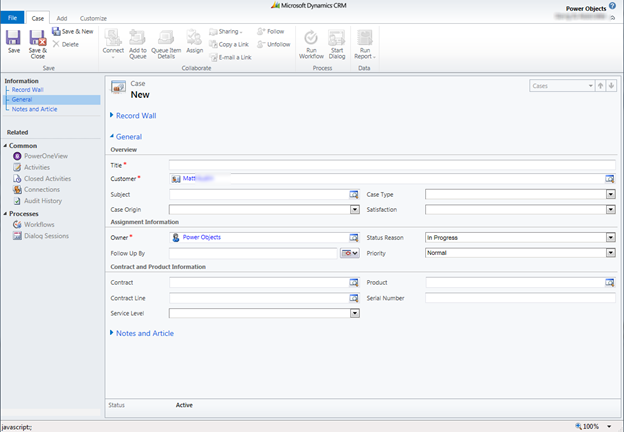
After Update Rollup 12 was released for Microsoft Dynamics CRM 2011, we noticed a few quirks. Yesterday we talked about not being able to convert a lead after the update. Here’s another one for you: we noticed that in some situations after the update, the case entity’s ribbon was missing. Intriguing!

Luckily, this only applies to the case entity where the ribbon has been customized.

So, is your case ribbon missing? If so, here’s a quick tip to get the ribbon back.

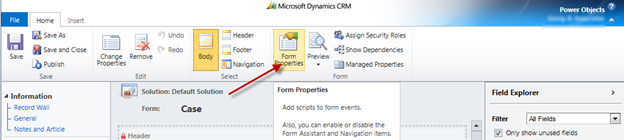
case ribbon missing - UR 12

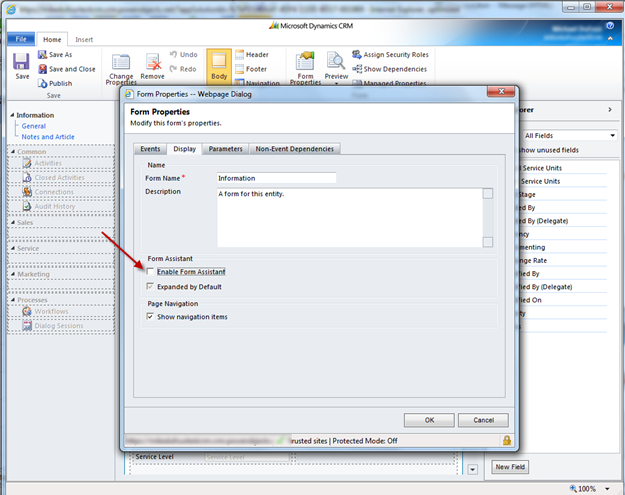
We need to disable the form assistant from the case.

Go to Settings > Customizations > Customize the System > Entities > Cases > Forms > Main > Form Properties > Select the Display Tab. (Whew!) Then uncheck the Enable Form Assistant.

Now we test! Refresh your browser, Go to Cases > Open Case record, and check to see if the ribbon appears.

Note: the Form assistant has been disabled.

Hope this trick resolves this minor issue! If this was helpful, you might want to check out our other blogs related to UR 12/Polaris:

Happy CRM’ing!

The post Is Your Case Ribbon Missing After Dynamics CRM UR 12? Here’s a Fix! appeared first on PowerObjects.

How to Fix a Quick Find Error in CRM 2011 Online

$
0
0

For the latest updates to this post please visit the original posting here: How to Fix a Quick Find Error in CRM 2011 Online

Recently we ran across a unique error when searching via Quick Find and we thought we’d share the resolution. (You can find out more about optimizing this area in our previous blog on optimizing CRM 2011 quick find queries.)

When using the quick find search on any entity, there is a setting in the system settings area of CRM to allow or not allow search results of more than 10,000+ records. In this case, we were searching for cases based on an account number. Because this account had over 10,000 cases associated to it, the search would not retrieve any results and presented a vague error message that did not specify the issue.

quick find error in CRM 2011 Online

The resolution is to change the System Settings to allow for search results of 10,000+ records.

This is how to do it:

  1. Go to Settings/Administration/System Settings

  1. On the General Tab, select NO for Enable Quick Find record limits. Click Ok to save this setting.

A straightforward fix, once the source of the error was understood.

As always, happy CRM’ing!

The post How to Fix a Quick Find Error in CRM 2011 Online appeared first on PowerObjects.


Dynamics CRM Sub-Report Not Displaying? Here’s a Workaround

$
0
0

For the latest updates to this post please visit the original posting here: Dynamics CRM Sub-Report Not Displaying? Here’s a Workaround

When working with Microsoft Dynamics CRM Online reports, you may encounter issues with reports not displaying properly. You might find that a sub-report cannot be displayed, a sub-report cannot be found, or there is an error rendering the report. The problem may be in the use of sub-reports. In this blog, we will cover:

  1. Common uses for sub-reports,
  2. Why to avoid sub-reports, and
  3. How to create reports without using sub-reports.

Common Uses for Sub-Reports

It’s common in Dynamics CRM to have a master detail record in a single form. This is known as a one-to-many relationship. In the example below, an account record shows many contacts associated with that account:

Microsoft Dynamics CRM Sub-reports

When building a custom FetchXML-based SSRS report with this type of data, most developers will gravitate towards displaying the account information in a report and passing the accounted to sub-report that displays the contact information. This may not be the best option for several reasons.

Why to Avoid Dynamics CRM Sub-Reports

Here are some reasons why sub-reports should be avoided as much as possible:

  1. They can have some performance issues with loading more slowly due to multiple reports.
  2. They can be difficult to manage. It’s easier to manage one report than to manage multiple reports. Each sub-report is a separate RDL (report definition file).
  3. With Dynamics CRM reporting, each sub-report should have a separate data source because Dynamics CRM does not support shared data sources.

How to Create a Master Detail Form Based Report without Using Sub-Reports

This blog assumes that the readers have knowledge on how to use FetchXML to develop custom SSRS report for Dynamics CRM. Our focus today is not to show how to create a FetchXM-based report, but to how show a technique that helps us build this report without a sub-report.

Also, we’ll be making this a “form-based” report, meaning this report can be run from an Account form by selecting the report from the ribbon (versus being run from the Reports area).

To get some background, you can view these resources:

Without further ado, here are the steps!

Step 1

Create a Dataset i.e FilterDS to pull accountid while enabling prefiltering. This will enable the report to grab the GUID of the account the report is run from.

Step 2

Create a parameter called account of datatype text.

Step 3

Right click the parameter account. Under properties, set the available and default value to point to the FilterDS and the accountid field as the value.

Step 4

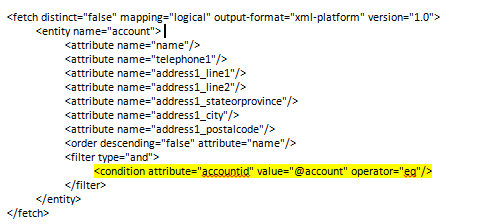
Now create the main dataset (master dataset) for the account as you see below and apply the filter accountid equals the parameter @account.


Step 5

Also create the detail dataset for contact and filter on parentcustomerid as you see below.

Notice the @account parameter is key in both of these datasets. @account contains the ID (GUID) of the account record that the report is run for.

If you put everything together, it looks something like this:

This will take care of the need to use sub-reports while still using the awesome feature of Dynamics CRM called Report Parameter Pre-filtering.

Happy CRMing!

The post Dynamics CRM Sub-Report Not Displaying? Here’s a Workaround appeared first on PowerObjects.

Effective Approach to CRM 2011 Performance Troubleshooting

$
0
0

For the latest updates to this post please visit the original posting here: Effective Approach to CRM 2011 Performance Troubleshooting

At PowerObjects, we work with a variety of clients who encounter Dynamics CRM 2011 performance issues. (In fact, CRM 2011 includes several performance counters that can help you monitor your components.) The approach you take to resolve the issues will make all the difference between success and failure, and having a happy CRM user or a frustrated user.

Performance is relative, and a strategic approach is critical to drive troubleshooting efforts. CRM 2011 performance issues must be approached meticulously to eliminate variables and isolate source of issue.

1. Ask the right questions

It is vital to ask the right questions to the right person before beginning to troubleshoot performance issues. More often than not, performance issues drag on and on due to people making assumptions and a lack of complete and accurate information about the issue at hand.

Poor performance typically equates to having responses to an action much slower than expected.

  • What specific action?
  • What is the expectation?

Examples of questions to ask:

(Q) What is the problem?

With this question, what you really want to know is exactly what the issue you need to tackle is. Simply stating ‘poor performance’ will not suffice.

(A) It takes 30 seconds to open a contact record

(Q) How many users are having this problem?

Here you want to determine if the issue is user specific or system wide. From there, focus on either the entire CRM deployment or individual users/machines.

(A) All the users in the sales team are seeing this issue, but for the IT team, it takes 3 seconds to open the same contact record.

2. Define a scope:

Defining a clear, tangible and concise scope is paramount to resolving performance issues.

An example of a good scope:

Identify the cause and find a resolution to reduce the time it takes for sales people to open a contact record from taking 30 seconds to about 3 seconds, similar to the time it takes IT staff of open the same records.

3. Isolate the source of the issue

In order to fix an issue, you must first be able to isolate the source of the issue. Ask the right questions, define the scope and gain understanding of the scenario.

A perquisite to isolating the source of the issue and devising a clear action plan to resolve it, is having a clear understanding of the CRM architecture and the interaction.

CRM 2011 performance troubleshooting

Client Tier:

This is how the end user interacts with the Dynamics CRM application. Components include:

  • CRM Outlook client
  • Web client
  • Mobile Express

 The Application Tier:

This includes components that lie in between the end users at the client tier and the data itself.

  • Networking
  • Microsoft Dynamics CRM
    • Front End – Web servers
    • Back End – Async service
    • Deployment administration
  • Reporting Services
  • Windows Server
  • Microsoft .Net
  • Internet Information Services (IIS)

The Data Tier:

The storage and direct retrieval of data from the application tier pieces to be served up to the client tier, including:

  • Microsoft SQL Server
  • CRM Databases
  • Microsoft CRM E-mail Router or Microsoft Exchange

More on this can be found in the whitepaper Optimizing and Maintaining the Performance of a Microsoft Dynamics CRM 2011 Server Infrastructure.

4. Use the appropriate tools to diagnose and resolve the issue

Now that you have asked the right questions, narrowed down the scope, isolated the source of the issue, use the appropriate troubleshooting tools to diagnose and resolve the issue.

Sample tools:

  • IE Hang/Crash dumps
  • CRM Diagnostic Tool
  • CRM Client Diagnostics
  • PSSDiag, SQLDiag, PSS Perf Wait Stats Codeplex.com/SQLNexus
  • Codeplex.com/Pal

Hopefully this can help your organization approach CRM 2011 performance issues more methodically, setting you up for success in resolving the issues…and ultimately resulting in happy end users!

Happy CRM’ing!

The post Effective Approach to CRM 2011 Performance Troubleshooting appeared first on PowerObjects.

How to Fix a CRM Workflow Stuck in “In Progress” State

$
0
0

For the latest updates to this post please visit the original posting here: How to Fix a CRM Workflow Stuck in “In Progress” State

As you learn about Workflows in Microsoft Dynamics CRM , you may encounter an issue where you find a workflow stuck in “In Progress”. You can see an example of this below. Sometimes these workflows might get processed after a long delay.
workflow stuck in "in progress"

Today we’ll go over how to resolve this issue in an on-premise instance of Microsoft Dynamics CRM. The issue might be related to a missing or wrong value in the MSCRM_CONFIG database.

  1. To find out, run the following SQL query and AsyncSdkRootDomain value should be same as the remaining two.

    Select ColumnName, NVarCharColumn
    from
    [MSCRM_CONFIG].[dbo].DeploymentProperties
    where
    ColumnName=‘ADSdkRootDomain’
    or
    ColumnName=‘ADWebApplicationRootDomain’
    or
    ColumnName=‘AsyncSdkRootDomain’;

  2. If they don’t have the same values, then update AsyncSdkRootDomain value using the following statement. In this ‘<servername>’, should be same value as ADSdkRootDomainresult.update [MSCRM_CONFIG].[dbo].[DeploymentProperties]
    set
    NVarCharColumn=‘<servername>’
    where
    ColumnName=‘AsyncSdkRootDomain’
  3. WARNING: Always backup your databases if you are updating data in SQL directly.

  4. Restart CRM Async Service and the workflows should start working again.

If this doesn’t resolve your issue, consider opening a request with PowerObjects for support.

Happy CRM’ing!

The post How to Fix a CRM Workflow Stuck in “In Progress” State appeared first on PowerObjects.

Dynamics CRM Sitemap References an Entity Not Found in the Metadata Cache

$
0
0

For the latest updates to this post please visit the original posting here: Dynamics CRM Sitemap References an Entity Not Found in the Metadata Cache

You may encounter an error where the sitemap for Organzation xxxxxxx-xxxx-xxxx-xxxx-xxxxxxxxxxxx contains a reference to the entity “entity_name”, but that entity was not found in the metadata cache.

This error shows up in the Application Event Log of the CRM web server when there are references to entities that do not exist in the sitemap. The most common reason for this issue may be when customizations are moved between environments and entities get deleted in this process, but the sitemap still has references to them. Below are the steps to resolve this error and stop the errors from appearing in the Event Log. It’s a good way to keep things clean in the CRM sitemap.

  1. Go to the Application Event Log of the CRM server and copy the GUID of the Organization and the entity name which is throwing the error. (Ignore this step if there is only one organization.)

    CRM Sitemap References an Entity Not Found

  2. Find the name of the Organization by querying the CRM database using the following statements. (Again, ignore if there is only one Organization.)

    select
    *
    from Organization where ID=
    ‘xxxxxxxx-xxxx-xxxx-xxxx-xxxxxxxxxxxx’[Enter the organization ID you found in the event log]

  3. Create a new unmanaged solution with just the sitemap and export the solution for the organization identified in step 2 (or just the organization if it is the only one).

  4. Make a back-up of this solution if something goes wrong with editing the XML and you need to revert to its original state before the change. Unzip the files of the solution and open the customizations.xml file.
  5. In the XML, search for the entity name found in the event log and see if there are any tags that start with “<SubArea Id=”entity_name_found_in_event_logs” ” or “<Area Id=” entity_name_found_in_event_logs” ” or “<Group Id=” entity_name_found_in_event_logs” “. Basically, look for all the references of this entity name, and remove those sections from the sitemap.
  6. Once all the reference are removed, re-package the solution (remember, you need to create a zip file of all the files in the unzipped folder) into a new .zip file and import it back into CRM.

  7. Finally publish the customization upon successful import. This should fix the error.

It’s important to note that the user performing the above process must have the following privileges:

  • System Administrator/System Customizer role in CRM
  • Local Administrator access on CRM web server machine
  • Local Administrator on SQL server for CRM and select permission on the MSCRM_CONFIG database

Also, when deleting anything in Microsoft Dynamics CRM, always back up the customizations. You might specifically back up the sitemap before editing and re-import this solution in case something goes wrong with the sitemap update.

Happy CRM’ing!

The post Dynamics CRM Sitemap References an Entity Not Found in the Metadata Cache appeared first on PowerObjects.

Microsoft Releases the CRM 2011 Outlook Client Troubleshooting Wizard

$
0
0

For the latest updates to this post please visit the original posting here: Microsoft Releases the CRM 2011 Outlook Client Troubleshooting Wizard

Great news!! This week Microsoft released the Microsoft Dynamics CRM 2011 Outlook Client Troubleshooting Wizard for configuration.

The Microsoft CRM 2011 Outlook client configuration troubleshooting wizard can be used to help find the most likely solution for an error in the Configuration Wizard. The wizard also helps you to identify and fix the problem that’s preventing the computer from connecting.

The wizard is really easy to use and is for both the CRM Online and On Premise environments.  The wizard contains screen shots and solutions for known configuration issues with the CRM client.

The wizard can be accessed with the following link — http://rc.crm.dynamics.com/rc/2011/en-us/online/5.0/outlook-troubleshooting.aspx

Here are some sample screenshots of the interface:

Microsoft Dynamics CRM 2011 Troubleshooting Wizard

Microsoft Dynamics CRM Troubleshooting Wizard

Microsoft Dynamics CRM Troubleshooting Wizard

We are pretty excited about this here at PowerObjects. Let us know what think by commenting.

Happy CRM’ing!

The post Microsoft Releases the CRM 2011 Outlook Client Troubleshooting Wizard appeared first on PowerObjects.

Sitemap Contains Reference to an Entity Not Found in the Metadata Cache

$
0
0

For the latest updates to this post please visit the original posting here: Sitemap Contains Reference to an Entity Not Found in the Metadata Cache

You may encounter an error where the sitemap for Organzation xxxxxxx-xxxx-xxxx-xxxx-xxxxxxxxxxxx contains a reference to the entity “entity_name,” but that entity was not found in the metadata cache.

This error shows up in the Application Event Log of the CRM web server when there are references to entities that do not exist in the sitemap. The most common reason for this issue may be when customizations are moved between environments and entities get deleted in this process, but the sitemap still has references to them. Below are the steps to resolve this error and stop the errors from appearing in the Event Log. It’s a good way to keep things clean in the CRM sitemap.

  1. Go to the Application Event Log of the CRM server and copy the GUID of the Organization and the entity name which is throwing the error. (Ignore this step if there is only one organization.)

    Entity Not Found in the Metadata Cache

  2. Find the name of the Organization by querying the CRM database using the following statements. (Again, ignore if there is only one Organization.)

    select
    *
    from Organization where ID=
    ‘xxxxxxxx-xxxx-xxxx-xxxx-xxxxxxxxxxxx’[Enter the organization ID you found in the event log]

  3. Create a new unmanaged solution with just the sitemap and export the solution for the organization identified in step 2 (or just the organization if it is the only one).

  4. Make a back-up of this solution if something goes wrong with editing the XML and you need to revert to its original state before the change. Unzip the files of the solution and open the customizations.xml file.
  5. In the XML, search for the entity name found in the event log and see if there are any tags that start with “<SubArea Id=”entity_name_found_in_event_logs” ” or “<Area Id=” entity_name_found_in_event_logs” ” or “<Group Id=” entity_name_found_in_event_logs” “. Basically, look for all the references of this entity name, and remove those sections from the sitemap.
  6. Once all the reference are removed, re-package the solution (remember, you need to create a zip file of all the files in the unzipped folder) into a new .zip file and import it back into CRM.

  7. Finally publish the customization upon successful import. This should fix the error.

It’s important to note that the user performing the above process must have the following privileges:

  • System Administrator/System Customizer role in CRM
  • Local Administrator access on CRM web server machine
  • Local Administrator on SQL server for CRM and select permission on the MSCRM_CONFIG database

Also, when deleting anything in Microsoft Dynamics CRM, always back up the customizations. You might specifically back up the sitemap before editing and re-import this solution in case something goes wrong with the sitemap update.

Happy CRM’ing!

The post Sitemap Contains Reference to an Entity Not Found in the Metadata Cache appeared first on PowerObjects.

CRM 2011 – Error Loading Pages after Installing Update Rollup 12

$
0
0

For the latest updates to this post please visit the original posting here: CRM 2011 – Error Loading Pages after Installing Update Rollup 12

After applying Update Rollup 12 (UR 12), you may notice an issue with a few sections that will no longer load via IFD, however; all sections load internally. The error you’ll see in the user interface is the always helpful “An error has occurred” message.

error loading pages after installing update rollup 12

Finding the Issue

First, we ran a platform trace and found the following error.

>MSCRM Error Report:

——————————————————————————————————–

Error: Field not found: ‘Microsoft.Crm.Controls.UIPage.crmHeader’.

Error Message: Field not found: ‘Microsoft.Crm.Controls.UIPage.crmHeader’.

Stack Trace Info: [MissingFieldException: Field not found: 'Microsoft.Crm.Controls.UIPage.crmHeader'.]

   at ASP.tools_systemcustomization_systemcustomization_aspx.__BuildControlcrmHeader()

   at ASP.tools_systemcustomization_systemcustomization_aspx.FrameworkInitialize()

   at System.Web.UI.Page.ProcessRequest(Boolean includeStagesBeforeAsyncPoint, Boolean includeStagesAfterAsyncPoint)

   at System.Web.UI.Page.ProcessRequest()

   at System.Web.UI.Page.ProcessRequest(HttpContext context)

   at System.Web.HttpApplication.CallHandlerExecutionStep.System.Web.HttpApplication.IExecutionStep.Execute()

   at System.Web.HttpApplication.ExecuteStep(IExecutionStep step, Boolean& completedSynchronously)

This was confusing because the dll for ‘Microsoft.Crm.Controls.UIPage.crmHeader’ was the latest version, and we would have expected to see a mismatch in version after the install if this was the issue.

Since the issue was only occurring when accessing Dynamics CRM via IFD, we determined that the previous version of the dll was being cached and was looking for a reference that had been removed.

Resolution

To resolve the issue we deleted the cache on the server from the following:

C:\Windows\Microsoft.NET\Framework64\v4.0.30319\Temporary ASP.NET Files

Dynamics CRM has two folders that need to be deleted – Help and Root.

To be safe, create a backup of these folders and delete them.


When these files are deleted, they will be recompiled and the issue where we were unable to load some sections was resolved.

Voila!

For more troubleshooting issues after applying UR 12, check out these blogs:

Happy CRM’ing!


The post CRM 2011 – Error Loading Pages after Installing Update Rollup 12 appeared first on PowerObjects.


Update to Sharepoint & Issues with List Component in Dynamics CRM

$
0
0

For the latest updates to this post please visit the original posting here: Update to Sharepoint & Issues with List Component in Dynamics CRM

If you have SharePoint integrated with Microsoft Dynamics CRM Online, you may have noticed a recent service update where you now experience the following:

  • You cannot open a PowerPoint file by clicking its link in a document list. Instead, you must download it, and then open it.
  • When you search from a document list, the search results page never stops trying to load.

To resolve this issue, you’ll need to install the new Microsoft Dynamics CRM List Component for SharePoint Server 2013. You can download the list component from the Microsoft Download Center.

Important:   Only use the new List component after the SharePoint Online service update is complete. To learn when the SharePoint Online service update is scheduled for you, refer to the Office 365 service alert email that you were sent. You can also go to the Microsoft Service Health Dashboard.

Happy CRM’ing!

The post Update to Sharepoint & Issues with List Component in Dynamics CRM appeared first on PowerObjects.
Dynamics CRM UR 12 Email Router Error: “The authentication endpoint was not found”

$
0
0

For the latest updates to this post please visit the original posting here: Dynamics CRM UR 12 Email Router Error: “The authentication endpoint was not found”

After installing UR 12 on a Dynamics CRM environment with Windows Server 2012 and ADFS 2.1, you may encounter an error with the email router.

Symptoms:

  1. The email router cannot be configured. You see an error message that says “The authentication endpoint username was not found.”
  2. The plug-in registration tool does not connect. You encounter an error that says “No organizations were retrieved. You may not have permissions to any Organizations on this deployment.”

Solution:

This error can be resolved by performing the following steps:

  1. Install UR 13 on the Windows Server 2012 hosting the Dynamics CRM 2011 Application. It can be downloaded here: http://www.microsoft.com/en-us/download/details.aspx?id=37133
  2. Reboot the server. (Step 3 will not work without performing a reboot on the CRM server).
  3. Run a PowerShell script in this link: http://support.microsoft.com/kb/2828015. This will correctly update the ADFS 2.1 with the endpoints needed for CRM.

There you have it! If you are still experiencing any issues after attempting this solution, you can always feel free to reach out to the CRM experts at PowerObjects.

Happy CRM’ing!

The post Dynamics CRM UR 12 Email Router Error: “The authentication endpoint was not found” appeared first on PowerObjects.
How to Fix Workflows Stuck in Waiting in CRM 2011

$
0
0

For the latest updates to this post please visit the original posting here: How to Fix Workflows Stuck in Waiting in CRM 2011

After applying Update Rollup 10, 11, 12 or 13 to Microsoft Dynamics CRM, you may see an issue where workflows that contain a step to send an email get stuck in a status of waiting. This specific issue occurs if the EnableRetrieveMultipleOptimization key exists in the registry and has a value of 2.

(As a side note, if you have workflows that are stuck in waiting and these conditions are NOT true, then we invite you to refer to another one of PowerObjects blogs, How to Fix a CRM Workflow Stuck In Progress.)

But let’s return to the original issue. We saw that system jobs for all workflows that included a step to send emails were stuck with a status of “Waiting,” but all other workflows were succeeding, so we were quickly able to rule out an Async Service issue.

If you have this problem, you can see the error by opening a system job of one of the workflows with a status of waiting, then expanding the details. This is the message:

Crm Exception: Message: Attribute objecttypecode on Entity PrincipalObjectAccessReadSnapshot is of type picklist but has Child Attributes Count 0, ErrorCode: -2147220912

workflows stuck in waiting status - error message

We noticed this error was present on multiple workflows and organizations. However, the error message is not enough to isolate the cause of the error.

At this point, a CRM Platform Trace is a great tool for revealing what is occurring at the platform layer in CRM, while triggering one of the problem workflows to run.

The key to identifying this issue was the exception in the CRM platform trace:

at CrmException..ctor(String message, Exception innerException, Int32 errorCode, Boolean isFlowControlException)  ilOffset = 0×0

at CrmException..ctor(String message, Int32 errorCode)  ilOffset = 0×0

at PagingHelper.GetPagingFieldValue(AttributeMetadata attribute)  ilOffset = 0xA6

at PagingHelper.Serialize(OrderExpressionCollection orderCollection, BusinessEntityCollection entities, EntityExpression entityExpression, ExecutionContext context)  ilOffset = 0xF6

at PagingHelper.CreatePagingCookie(BusinessEntityCollection entities, EntityExpression entityExpression, ExecutionContext context)  ilOffset = 0×36

at Business.QueryAndFillEntityCollection(CrmDbConnection dbConnection, IDbCommand dbCommand, BusinessEntityCollection entities, EntityExpression entityExp, PagingHelper pagingHelper, Boolean useEntityExpression, String aggregateLimitExceededName, ExecutionContext context)  ilOffset = 0x6A

at Business.DoRetrieveMultiple(BusinessEntityCollection entities, EntityExpression entityExp, DatabaseQueryTarget queryTarget, PagingHelper pagingHelper, ExecutionContext context)  ilOffset = 0×41

at Business.DoRetrieveMultiple(BusinessEntityCollection entities, EntityExpression entityExp, DatabaseQueryTarget queryTarget, ExecutionContext context)  ilOffset = 0×40

The “GetPagingFieldValue” would only appear if the EnableRetrieveMultipleOptimization was present with a value of 2. Since the CRM Server was on UR 12, the EnableRetrieveMultipleOptimization was no longer needed. The logic for optimizing the performance for queries which run against large sets of data changed with Update Rollup 10. In other words, the old logic was causing the issue with workflows.

The resolution to this issue is to delete the EnableRetrieveMultipleOptimization registry key and restart all the CRM services. Voila! That’s it.

Hope this helps. If you’re looking for additional technical support from PowerObjects, don’t hesitate to contact us.

Happy CRM’ing!


The post How to Fix Workflows Stuck in Waiting in CRM 2011 appeared first on PowerObjects.
How to Resolve a PowerPhoto and Silverlight Issue

$
0
0

For the latest updates to this post please visit the original posting here: How to Resolve a PowerPhoto and Silverlight Issue

Have you been having some issues with errors in Silverlight since the last Silverlight upgrade in May? Well, so have we! Some parts and pieces of our PowerPack add-ons are built in Silverlight, which is how we came across this issue.

PowerPhoto users specifically have been reporting that they were seeing the below error when trying to load a picture on their CRM records:

PowerPhoto and Silverlight issue - error

The PowerPhoto error stems from an issue that was introduced in the latest version of Silverlight. To rectify this issue, please follow the steps below. Note that this does need to be done on each machine that is experiencing the issue.

1.       Navigate to http://www.microsoft.com/en-us/download/details.aspx?id=36946

silverlight issue image 2

2.       Download the file called 20125.00\runtime\Silverlight_Developer_x64.exe (for 64 bit Silverlight installations) OR 20125.00\runtime\Silverlight_Developer.exe and click Next.

solving the powerphoto and silverlight issue

3.       When prompted, click Run.

4.       Click on Install Now, and wait for the program to install.

5.       For the changes to take effect, please restart your computer.

Downloading the developer Silverlight above will resolve the error in PowerPhoto, and could resolve some other Silverlight issues you’ve been experiencing as well.

Happy CRM’ing!

The post How to Resolve a PowerPhoto and Silverlight Issue appeared first on PowerObjects.

Maintaining the Outlook Client for Microsoft Dynamics CRM 2011

$
0
0

For the latest updates to this post please visit the original posting here: Maintaining the Outlook Client for Microsoft Dynamics CRM 2011

The Microsoft Dynamics CRM Outlook client is a powerful add-in to Outlook that allows you to synchronize your contacts and activities. Just like any powerful tool, you may need to take steps toward maintaining the Outlook client add-in from time to time.

Similar to how your web browser stores temporary files in a cache or folder on your computer, Microsoft Dynamics CRM processes and records may create and store files in a temporary cache. When updates occur, software may still be referencing some of these old files in cache, which can cause various issues. The same can be true for the Microsoft Dynamics Outlook client and the need to clear the cache periodically.

Note: Often a user’s Outlook could be open for days without ever closing (even if workstation is hibernating). Due to the long duration, sometimes the CRM client may stop syncing. The diagnostics tool can help resolve issues stemming from that.

Many simple issues can be resolved by clearing out the temporary cache for Dynamics CRM. Things like:

  • CRM stops syncing
  • CRM ribbon buttons are disabled and not usable
  • Lists of records do not display properly
  • Outlook won’t load

How to Clear the Temporary Files for Dynamics CRM

To open the Diagnostics Utility, follow these steps:

  1. Open the Start Menu.
  2. Click All Programs.
  3. Click Microsoft Dynamics CRM 2011.
  4. Click on the Diagnostics utility.

Maintaing the Outlook Client

As you can see, this tool can be used for other things such as turning off the synchronization or email tracking settings. These settings can also be managed in the Outlook CRM Options area.

To delete the temporary CRM files, follow these steps in the Diagnostics utility:

  1. Click on the Advanced Troubleshooting tab.
  2. Under the heading “Delete Temporary Microsoft Dynamics CRM Client files”, click Delete.
  3. Click Save.
  4. Close and re-open your Outlook to check if the clearing of the cache resolved your problem.

This is usually the first step recommended when troubleshooting Microsoft Dynamics CRM Outlook add-in problems.

You might also want to reference our blog on how to perform a trace with the Dynamics CRM 2011 Outlook Client to help troubleshoot any issues.

Finally, if you are having issues with installing/configuring the Microsoft Dynamics CRM 2011 for Outlook client, refer to the Microsoft Dynamics CRM for Outlook Configuration Troubleshooting Wizard.

Happy CRM’ing!

The post Maintaining the Outlook Client for Microsoft Dynamics CRM 2011 appeared first on PowerObjects.

Viewing all 98 articles
Browse latest View live