Quantcast
Channel: Troubleshooting - PowerObjects
Viewing all 98 articles
Browse latest View live

Field Is Not Unique Error when Importing a Solution in CRM 2011

$
0
0

For the latest updates to this post please visit the original posting here: Field Is Not Unique Error when Importing a Solution in CRM 2011

If you have production CRM environment and development/test/UAT environment(s), you have probably encountered a situation where you may need to create fields manually separately in both environments. If you do this and then later import a solution from Test to Production, you may see an error in the solution import claiming that field with the specified name already exists, or that ‘Column names in each table must be unique. Column name x in table yy is specified more than once.’

This is usually result of schema of the field being different. It could be string in one CRM and option set in another. A trickier problem is when the schema name of the field differs by capitalization, for example po_testfield and po_TestField. Capitalization is ignored when checking if the field already exists, but for some reason it is not accepted as same field and be updated with new metadata.

Example

Here are two screenshots of same field in two different CRMs. Even if the name of the field is same for both ‘po_testfield’, the schema name is different for ‘po_testfield’ vs ‘po_TestField’. Importing a solution containing this field will result in above error.

Field Is Not Unique Error in Dynamics CRM

Field Is Not Unique Error

Solution

To fix this issue, delete the field in test and recreate it with matching schema name. After that, the field should be recognized as a same field and will not result in error in the subsequent imports.

More information regarding best practices of CRM 2011 solutions can be found in the following blogs:

And of course, if you are still experiencing issues or have additional questions, you can always reach out to the CRM experts at PowerObjects!

Happy CRM’ing!

The post Field Is Not Unique Error when Importing a Solution in CRM 2011 appeared first on PowerObjects.


How to Resolve Generic JavaScript Errors on Forms in Dynamics CRM

$
0
0

For the latest updates to this post please visit the original posting here: How to Resolve Generic JavaScript Errors on Forms in Dynamics CRM

JavaScript comes in very handy when working within Microsoft Dynamics CRM, and we have a lot of blogs on using JavaScript in CRM. But once in a while you may experience the infamous generic JavaScript Error that looks like this…

JavaScript Errors on Forms in Dynamics CRM

PowerObjects has many resources in order to assist you in order to find out what might be causing this error.

For people who have Microsoft Dynamics CRM 2011 On-Premises, make sure to first consider the following when troubleshooting:

  1. What version of Microsoft Dynamics CRM are you on?

As of June of 2013, there are 13 update rollups (URs) that are currently available to the public. The latest version is UR 13. The best rollup for you will depend on your business needs.

  1. Which browser are you using?

UR 12 and beyond allow for multi-browser compatibility, but your JavaScript may not behave the same for all browsers. Test in different browsers (IE, Firefox, Chrome, Safari) and see if you still get the same error.

  1. Does the web address start with http:// or https://?

Some JavaScript that is developed has to call web services and the connection must be secure in order for it to work. This means that your web address may need to be https:// .

  1. Is your code compliant with Microsoft Dynamics 2011 SDK?

JavaScript is a powerful tool, but there are standardized coding structures that Microsoft supports. If you are unsure whether your code is supported, or you are considering a UR update, please try the Custom Code Validation Tool.

For those of you who are not On-Premises and experiencing heart aches contact PowerObjects and we can assist you with your coding needs!

In any case, if you run into errors PowerObjects offers many services to help ensure your company is successful.

Happy CRM’ing!

The post How to Resolve Generic JavaScript Errors on Forms in Dynamics CRM appeared first on PowerObjects.

How to Execute a Failed Workflow Using CRM ExecuteWorkflowRequest in a Console Application

$
0
0

For the latest updates to this post please visit the original posting here: How to Execute a Failed Workflow Using CRM ExecuteWorkflowRequest in a Console Application

Workflows are an extremely useful tool in Microsoft Dynamics CRM. In today’s blog, we’ll discuss how to execute a workflow using the CRM ExecuteWorkflowRequest message in a console application.

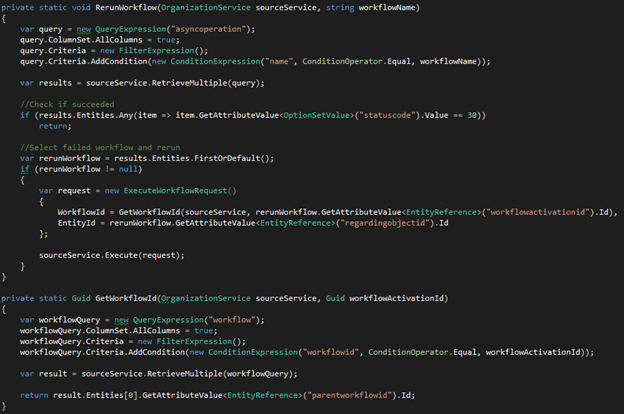
In this scenario, a workflow has failed a couple of times. Instead of re-running this workflow manually, we can use the code below to automate the process.

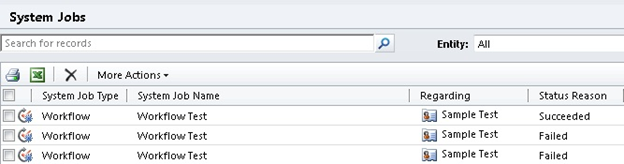
The screenshot below shows the System Jobs view of the workflow named Workflow Test that has failed.

The ExecuteWorkflowRequest message can be used to execute any given workflow. The ExecuteWorkflowMessage requires two values:

  1. WorkflowId
  2. EntityId

Note: You must ensure that the WorkflowId is of an active workflow.

You can manually set these values by using the CRM interface to attain each of these values and simply call the ExecuteWorkflowRequest in the console application.

The following code automates this process by doing the following:

  1. Query the System Jobs (asyncoperation entity) to retrieve failed worklows by the workflow name.
  2. Check to see if the workflow hasn’t already succeeded.
  3. Select one failed workflow to rerun.

Console application code

After the console application executed, the failed workflow was rerun.

System Jobs view after console application was executed and workflow succeeded

When a workflow is created, CRM creates two entries in the workflow entity. When retrieving failed workflows from the asyncoperation entity, you will notice the workflowactivationid attribute has a reference to the workflow. If you attempt to use this value as the WorkflowId, you will get an error stating “Workflow must be in a published state” when the ExecuteWorkflowRequest message is executed.

The GetWorkflowId helper method is used to retrieve the published workflow by querying the workflow entity and retrieving the parentworkflowid attribute. This value will correspond to the WorkflowId that you will get when using the CRM interface.

You will want to expand the logic to determine a distinct set of failed workflows and regarding entity that have not succeeded.

There you have it! An easy way to automatically execute a workflow using a console application. If you are looking for help with your workflows, PowerObjects can help! Contact us for more information.

Happy CRM’ing!

The post How to Execute a Failed Workflow Using CRM ExecuteWorkflowRequest in a Console Application appeared first on PowerObjects.

Error: Can’t Login to CRM After Windows Update to ADFS 2.0

$
0
0

For the latest updates to this post please visit the original posting here: Error: Can’t Login to CRM After Windows Update to ADFS 2.0

After applying recent Windows Updates to your ADFS 2.0 environment within Windows Server 2008, you may experience an issue affecting all users who attempt to log in to Microsoft Dynamics CRM. Users will not be able to login, and instead will receive the following error message:

“There was a problem accessing the site. Try to browse to the site again. If the problem persists, contact the administrator of this site and provide the reference number to identify the problem.”

Additionally, when looking at the Event Viewer under AD FS logs, you will see the following error:

System.Reflection.TargetInvocationException: Exception has been thrown by the target of an invocation. —> System.TypeLoadException: Could not load type ‘Microsoft.IdentityModel.Protocols.XmlSignature.AsymmetricSignatureOperatorsDelegate’ from assembly ‘Microsoft.IdentityModel, Version=3.5.0.0, Culture=neutral, PublicKeyToken=31bf3856ad364e35′.

   at Microsoft.IdentityServer.Service.SecurityTokenService.MSISSecurityTokenService..ctor(SecurityTokenServiceConfiguration securityTokenServiceConfiguration)

   — End of inner exception stack trace —

   at System.RuntimeMethodHandle._InvokeConstructor(Object[] args, SignatureStruct& signature, IntPtr declaringType)

   at System.Reflection.RuntimeConstructorInfo.Invoke(BindingFlags invokeAttr, Binder binder, Object[] parameters, CultureInfo culture)

   at System.RuntimeType.CreateInstanceImpl(BindingFlags bindingAttr, Binder binder, Object[] args, CultureInfo culture, Object[] activationAttributes)

   at Microsoft.IdentityModel.Configuration.SecurityTokenServiceConfiguration.CreateSecurityTokenService()

   at Microsoft.IdentityModel.Protocols.WSTrust.WSTrustServiceContract.CreateSTS()

   at Microsoft.IdentityModel.Protocols.WSTrust.WSTrustServiceContract.CreateDispatchContext(Message requestMessage, String requestAction, String responseAction, String trustNamespace, WSTrustRequestSerializer requestSerializer, WSTrustResponseSerializer responseSerializer, WSTrustSerializationContext serializationContext)

   at Microsoft.IdentityModel.Protocols.WSTrust.WSTrustServiceContract.BeginProcessCore(Message requestMessage, WSTrustRequestSerializer requestSerializer, WSTrustResponseSerializer responseSerializer, String requestAction, String responseAction, String trustNamespace, AsyncCallback callback, Object state)

System.TypeLoadException: Could not load type ‘Microsoft.IdentityModel.Protocols.XmlSignature.AsymmetricSignatureOperatorsDelegate’ from assembly ‘Microsoft.IdentityModel, Version=3.5.0.0, Culture=neutral, PublicKeyToken=31bf3856ad364e35′.

   at Microsoft.IdentityServer.Service.SecurityTokenService.MSISSecurityTokenService..ctor(SecurityTokenServiceConfiguration securityTokenServiceConfiguration)

Reason:

The problem with the recent Windows Updates can be attributed due to incompatibility with the version of AD FS 2.0. The specific updates that caused this problem are as follows:

KB2843638

KB2843639

Resolution:

Apply Update Rollup 3.0 for ADFS. You can download and install from the following location:

http://support.microsoft.com/kb/2790338

Alternatively, uninstalling the recent Windows Updates will also correct the issue.

Additional Notes:

This issue only affects Windows Server 2008. We have not seen this problem happening for Windows Server 2012.

As always, if you need assistance, PowerObjects can help—just contact us.

The post Error: Can’t Login to CRM After Windows Update to ADFS 2.0 appeared first on PowerObjects.

Are You Missing Completed Workflows in CRM 2011?

$
0
0

For the latest updates to this post please visit the original posting here: Are You Missing Completed Workflows in CRM 2011?

Workflows are a powerful tool that CRM users utilize to create records, update records, send emails and much more. With a recent update to Microsoft Dynamics CRM, a new option was added to the administration tab that allows users to “automatically delete completed workflow jobs (to save disk space).”

automatically delete completed workflow jobs - CRM 2011

So what does this mean?

When you check this option, it will remove the system job as soon as it has been marked complete, and your completed workflows will appear to be missing. This could cause issue with auditing or troubleshooting a workflow as well as present issues with performance.

To avoid these issues, PowerObjects recommends that you leave this option unchecked and schedule a system job on either a weekly or monthly basis to remove these completed job records instead.

For more on workflows and how to use them, here are some additional blogs:

Happy CRM’ing!

The post Are You Missing Completed Workflows in CRM 2011? appeared first on PowerObjects.

Dynamics CRM Email Router Troubleshooting 101 – Outgoing Emails

$
0
0

For the latest updates to this post please visit the original posting here: Dynamics CRM Email Router Troubleshooting 101 – Outgoing Emails

One of the great features of Microsoft Dynamics CRM is the ability to send out automatic notification emails triggered by certain actions, such as creating an account, closing a case, adding a note to a case, or converting a lead. This is done using the email router. So what happens when you have a CRM environment with a working email router setup, and then something breaks? Instead of simply restarting the server (which may fix the problem), you would be better off to first identify the real issue. This Dynamics CRM email router troubleshooting guide will show you how to troubleshoot step-by-step a previously working email router environment, configured for outgoing emails.

Step 1: Determine if there is a problem with sending emails from CRM.

Issues that stem from the email router may be reported with only vague details. For instance, you could have user call to say that “emails are not working,” and you will have to determine whether the problem is specific to your CRM email router, Microsoft Outlook, Microsoft Exchange, or something else.

Let’s say, for example, Mike calls the help desk to with an issue where a work order was generated in CRM, but Bob was not notified. In this case, Mike is counting on a workflow to an automatically email to specified users when a work order is created or changed. If Mike is an advanced user, he might recognize the issue and ask, “Can you check the email router? It doesn’t appear to be sending out emails.” But that might not be the case with everyone.

No matter how the issue is first brought up, the thing to you need to determine first is whether the issue is related to emails coming out of CRM. Sometimes other things can be confused with an email router problem, such as networking, Outlook (offline mode, junk folder), or Exchange (password change, email address change). So first you’ll want to check whether the user still has network connectivity and is still receiving emails.

Step 2: Determine if the issue is specific to just one user, or across all users.

There are two different paths for troubleshooting a user-related issue depending on whether it affects just one user or the whole organization, so you’ll want to determine that right away. There are two quick ways to determine this:

  • Check with another user, or a few additional users, to see if they also are experiencing problems.
  • Test by sending an email activity yourself from CRM to see if you receive it.

The second method is preferred, since it cuts down on additional variables that could be causing the issue. For example, the asynchronous service could stop working, and your users may not be able to tell if they are testing it all the same way—by creating a record that triggers a workflow that sends an email. If the async is down, no emails will be generated, even if the email router is functioning correctly.

If you can successfully send and receive an email activity manually created within CRM, it’s likely a user issue. Proceed to step 3. Otherwise, go to step 9, since it is likely a server issue instead.

Step 3: If you’ve determined this is a use-related issue, check whether the user’s outgoing profile is set to “email router.”

Go to Settings > Administration > Users, and open the specific user who reported the issue. Scroll down to a dropdown box called “E-mail access type – Outgoing.” If it is not already set, change it to e-mail router and save the record.

Step 4:
Check whether the user has Approve access.

You should still be in the user record from the last step. In the ribbon, click Approve E-mail. Once this is done, give it at least a few minutes to determine if emails are coming through.

Alternatively, you can remove the requirements for having to approve emails for all users and/or queues. You can do this by going into Settings > Administration > System Settings, and in the email tab, “Process emails only for approved users/queues.”

Step 5: Check if the email activity exists in CRM.

To find the corresponding email that was supposedly created in CRM that the user claims he or she did not receive, start an advanced find and change “Look for:” to email messages.

Under the criteria, select Direction Equals Outgoing.

Dynamics CRM Email Router Troubleshooting

Now click on Results in the ribbon.

Once you have the list of outgoing email activities in CRM, click on the Modified On column to sort, then search for the email that the user did not receive. You may also want to specify additional criteria in the advanced find to further narrow it down.

If the email activity does not exist, then the problem is not the email route. Instead, it’s likely a failure in the process or a user-related error within CRM, such as:

  • Not following correct procedure
  • A problem with the asynchronous service
  • Changes done in CRM where the user was not made aware

If the email activity does exist, you’ll need to examine the status reason of the email activity. Proceed to the next step.

Step 6: Does the Status Reason show as Sent?

If the status reason shows as sent, that means the email router successfully sent the email through SMTP or Exchange, and the issue most likely lies outside of the email router.

  • First check the user’s junk email folder, especially if you are using the tracking token.
  • Examine the user’s client-side rules to determine if anything caused the email to be deleted/moved.
  • Check the SMTP or Exchange server logs to see if the email was successfully delivered.
  • Also check logs for the incoming Exchange, in case the emails were blocked or rejected.

Step 7: Does the email activity show as Sending?

An email activity should only be in sending status for a short time. If it is in perpetual sending mode, you may see the “Number of delivery attempts” repeatedly going up (ideally, this number should not be higher than 1.) You’ll need to verify that the sender of the email has access to the server sending the emails. Also check the error logs on the email router server to determine if a specific reason is causing it to fail.

Step 8: Does the email activity show as Pending Send?

An email activity in pending send is one that does not have a means to be delivered, which could mean various things. Since we have already checked that the user reporting the issue is set to use the email router, we should double check that the sender of the email has that set as well.

Open the email activity and check the sender of the email. Whether it is a queue or a user, it should have outgoing set to email router and access approved. See steps 3 and 4 on how to set this.

If the email was generated from a workflow where the owner of the workflow is different than the sender of the email, then the sender needs to have all emails on your behalf set.

  1. Login to CRM as the sender of the email.
  2. Go to File > Options.

  3. Go to the email tab and check “Allow other Microsoft Dynamics CRM users to send e-mail on your behalf.”

    Dynamics CRM Email Router Troubleshooting

    Note: it may be beneficial to have this setting for all users. Since having every user log in to CRM to change their personal options can be tedious, you can update all users at once through two different methods. If you have direct data base access, you can run a SQL update query, in the orgname_MSCRM database:

    update usersettings

    set issendasallowed = 1

    If you are using CRM Online, or do not have database access, you can also set this setting by downloading the user settings utility, available free from Codeplex. This allows you to manage user settings, including the allow email setting, through a web interface.

If the email activity is still in pending send status after these steps, login to the email router server, open the email router configuration, go to the tab for “users, queues, and forward mailboxes,” and click load data. Check if the sender of the email appears in the list, then click Test Access. Make sure it succeeds. Then click the Publish button, and see if the email gets sent. If not, proceed to the next step.

9) Check the email router service.

First, check if the service “Microsoft Dynamics CRM Email” is running. If not, then start the service. If the service does not start, check if it is running under a service account, and if so, update the password to make sure it is correct. You may also try running the service as local system.

If this is not the case, then go to the following folder: C:\program files\microsoft dynamics CRM Email\Service

Rename the file Microsoft.Crm.Tools.EmailAgent.SystemState.xml to something else (like .old). Then attempt to restart the service.

Note: If you have incoming profiles set up, there are further considerations to take before renaming this file, since it keeps track of the last threshold date. Essentially, if this date is lost and you have queues setup, all previous emails will be re-created in CRM.

If it still doesn’t start, it is possible the config file is corrupt. Sometimes this happens after a rollup update, but it is not a common error. To fix it, rename the following file to something else: Microsoft.Crm.Tools.EmailAgent.xml. Then run a repair on the email router installation, which will recreate that file, and attempt to start the service again.

10) Test access to the organization.

If the service is running correctly, open the email router configuration, go to the tab for “users, queues, and forward mailboxes,” and click load data. If you receive an error message, verify that the account specified in the deployment can successfully login to the organization.

For on-prem environments, the quickest way to check is in the deployments tab. Open the configured deployment and copy and paste the URL into a browser, still on the email router server, while logging in as the user specified in the deployment.

If you cannot login, then verify that the user still has access, along with the system administrator security role. Possible reasons for failure to connect are:

  • Change of password
  • Reduction in security rights for the user
  • Disabling of the user
  • Change in the deployment configuration (such as configuring of ADFS).

If you can login through a browser, check if the user is in the privUserGroup security group, within active directory.

For CRM Online, attempt to login through the regular CRM URL in the email router server. Some possible reasons why it would suddenly fail to stop working are similar to an on-prem environment. A change in the deployment configuration could be a migration from CRM Online Live-ID to Office 365, in which the discovery URL changes.

One last thing to check is if you can still create a discovery service. You can test this by going to Settings > Customization > Developer Resources, and click on the URL below discovery service. This will bring up a new page that starts with “DiscoveryService Service” at the top. Click on the link at the top, just to the right of svcutil.exe, which should bring up an XML page. If you see a 500 error in the XML, then the Discovery service needs to be repaired before the email router will start working. As a quick fix, try an iisreset on the front end application server.

11) If you can successfully load data, then click on test access.

If an error message is received, verify that the connection to the SMTP server is still valid with correct access, and that the SMTP service is running. The error messages here are usually very accurate, and will say the exact error (such as unable to relay, impersonation failure, etc.)

If access is succeeding but no emails are being sent, there are two things to check:

  • The outgoing port is correct.
  • SMTP/Exchange server logs, emails may be sending but getting rejected on the incoming side.

12) Additional considerations.

  • It is advisable to restart the email router service (not the server) at least once a week. A restart is quick, painless, and can be safely done during business hours.
  • When installing CRM or email router update rollups, we also recommend for both to have matching updates. For Office 365 Exchange, you will need at least rollup 10 for the email router.
  • Sometimes when going to “test access” it will hang indefinitely, without ever succeeding or failing, even if everything is working fine. A quick fix is to restart the email router service, and then attempt to test again.
  • More often than not, there is no need to restrict user’s access to the email router for outgoing, so you should strongly consider allowing everyone by default. See step 4 on how to set this.
  • Using an SMTP server to send emails can be a bit tricky, in the sense that your IP address may end up in spam block lists, such as Spamhaus. If you are using the built-in Windows SMTP server and have having issues with emails arriving at user’s inbox, check the inetpub folder, in the badmail folder, to see if anything is showing up. Also check the queue folder, to see if they are being processed. If they are not, a restart of the SMTP service would be advisable. If a restart still does not process the queues, then you may need to investigate whether your SMTP server external IP address is indeed in a spam block list. For this reason, we recommend against sending out large email campaigns through an SMTP server. Consider instead PowerMailChimp, a CRM integration for mailchimp.com, which sends out emails through their own servers. You do not need an email router configured, and you will never have to worry about spam block lists.

If you’ve gone through these steps and are still having trouble, consider having PowerObjects help provide some support. We’re happy to help! You can reach out to us here.

Happy CRM’ing!

The post Dynamics CRM Email Router Troubleshooting 101 – Outgoing Emails appeared first on PowerObjects.

Table Merge Error with Upgrading a 2011 Organization Database to CRM 2013

$
0
0

In Microsoft Dynamics CRM 2013, there has been a significant change to the database structure in that there are no longer EntityBase and EntityExtensionBase tables. Now there is just one entity table for a given entity. With this change, those who are upgrading an existing organization will eventually need to go through the process of merging the Base and Extension tables—either at the time of upgrade or at a later date.

As a result of this change, one of the issues that comes up while importing a CRM 2011 organization database to a new 2013 deployment (using the Organization Import feature of the Deployment Manager) is a table merge error stating: “This may exceed that the architectural limits of Microsoft SQL Server, and the merge operation will fail.”

The steps below will help you resolve this issue.

1. While importing an organization for upgrade to CRM 2013, the validation checks show the following error:
Table Merge Error

The fix is to decrease the number of columns in the source CRM system. This has to do with a view limitation in SQL server.

Note: Due to the architecture change, if you are hitting this limit ‘by just a little bit’, defer the table merge until later and try via the command line.

2. Cancel the import and defer the Table Merge in the following way, as noted in the CRM 2013 upgrade instructions:

How to Defer Table Merge

Install CRM, but do not upgrade any orgs.

Create a new reg key. Location: HKEY_LOCAL_MACHINESOFTWAREMicrosoftMSCRMMergeBaseExtensionTables

Type: Dword (32-bit)

Value: 0

3. Restart import and complete.

4. At this point you need to find out what columns on that table can be deleted. Then you should be able to run the merge manually, as after the upgrade there will be a few less columns due to the new architecture of CRM 2013.

5. Follow the steps below using the merge tool that comes with the CRM 2013.

a. Set that registry key mentioned above in step 2 to 1 first (so CRM will run the merge).

b. Run the following statement at command prompt on CRM Front End server to merge the tables that have merge issues (the ones that stated issues in the import in step 1 above). Replace the names appropriately for highlighted parameters:

CrmMergeBaseAndExtensionTableTool /s:databaseservername /o:<databasename> /e:entityname  /log:c:crmmergetoollog.txt

c. Repeat step 2 for all the entity tables with merge issue. The error in the import from Deployment Manager might still remain. In this case, run the rest of the merge for the whole database with the following command:

CrmMergeBaseAndExtensionTableTool /s: databaseservername /o:< databasename > /log:c:crmmergetoollog.txt

This should take care of the merge error, and importing the database should go smoothly at this point.

PowerObjects encourages customers to complete this merge as quickly as possible. NOT completing this step in the upgrade process may prohibit future updates.

You can learn more about CRM 2013 features and functions or sign up for a CRM 2013 upgrade training on our website.

Happy CRM’ing!

The post Table Merge Error with Upgrading a 2011 Organization Database to CRM 2013 appeared first on PowerObjects.

Import Sequence Number and the Dynamics CRM Outlook Client

$
0
0

Are you getting a generic error when attempting to configure the Dynamics CRM Outlook Client? Because there isn’t an actual error message visible from the workstation, it can be a bit frustrating to determine what is causing this issue. If you have access to the CRM server, the error logs can help point you in the right direct.

One possible scenario is that the Searchable attribute of the Import Sequence Number field is set to No.

This field is required for the Outlook Client synchronize functionality to execute properly.

NOTE: A CRM user with either System Administrator or System Customizer security role is necessary to perform the steps below.

  1. To determine if this is causing the issue, set the Searchable field to Yes, then publish your configurations in CRM.
  2. Attempt to configure the Outlook Client again.
  3. If this does not resolve your issue, check to see if the CRM server and Outlook Client are on the same Update Rollup. Gaps in the Update Rollups can also cause this type of issue.

For additional troubleshooting ideas, you can read up on all of our blogs on the Dynamics CRM Outlook Client. As always, if you need additional assistance with Dynamics CRM, don’t hesitate to reach out to PowerObjects, the 2012 and 2013 Dynamics CRM Partner of the Year!

Happy CRM’ing

The post Import Sequence Number and the Dynamics CRM Outlook Client appeared first on PowerObjects.


Duplicate Key Row Error during Upgrade to CRM 2013

$
0
0

Greetings fellow CRMers!

Nothing spoils the excitement of upgrading your CRM 2011 organization to CRM 2013 like a lousy error. If you’ve experienced this key row error, we’ll tell you how to keep it from ruining your day.

This particular error occurs while the upgrade wizard is processing the upgrade. It may not be flagged as a concern during the validation portion, but the upgrade may fail and the error within the log will state:

System.Reflection.TargetInvocationException: Exception has been thrown by the target of an invocation. —> System.Data.SqlClient.SqlException: Cannot insert duplicate key row in object ‘MetadataSchema.AttributePicklistValue’ with unique index ‘ndx_AttributePicklistValue’. The duplicate key value is (c5157c5f-9375-446c-8e8b-1659c0c5d54c, 5, 0, <uniqueorgid>, Jan 1 1900 12:00AM).

Reason for the Error

This error is due to a few “extra” user CAL license types in the caltype field on the systemuser entity. Specifically the extra CAL types are “Employee Self Service” and “Device Employee Self Service.” These CAL types do not show up on the License Type Option Set on the user form, but you can see them if you look at the caltype field on the systemuser entity. This option set is locked so you cannot remove these options in the CRM field configuration.

Duplicate Key Row Error while upgrading to CRM 2013

In SQL, you can verify these values by running this query against your organization database:

select * from metadataschema.AttributePicklistValue where Optionsetid = ‘c5157c5f-9375-446c-8e8b-1659c0c5d54c’

The results will show more than the standard five license types.

Resolving the Error

NOTE: This blog describes removing values from the CRM organization database using SQL server to solve a very specific issue. As always, make sure you have a good database backup before following these steps.

To resolve the issue, take the following steps.

  1. Take a backup of your database.
  2. Run the following query:

    delete from MetadataSchema.AttributePicklistValue where Value > ’4′ and Optionsetid = ‘c5157c5f-9375-446c-8e8b-1659c0c5d54c’

This will get rid of the extra license types that were preventing you from upgrading, and it should be clear sailing afterward.

If you are facing an issue upgrading your CRM organization to CRM 2013, we’d love to help you through it! Contact us for support, or, if you’d like to sit back and relax, we’ll do it all for you.

Happy CRM’ing!

The post Duplicate Key Row Error during Upgrade to CRM 2013 appeared first on PowerObjects.

Sitemap Error After Removing a Managed Solution from CRM 2011

$
0
0

Greetings, fellow CRMers! After removing a managed solution, have you received the following error when attempting to login to the CRM website?

Removing a Managed Solution

If you have, look no further for the solution.

This particular error is due to a leftover sitemap reference to a deleted entity. Keep in mind that CRM will normally remove all references from the sitemap when removing a solution. If CRM is unable to do so, it will throw an error and prevent the solution from being removed. However, instances have occurred where this is not the case when removing a managed solution.

Here’s how to remedy a situation like this step by step:

  1. Download the SiteMap Editor Tool which is part of the XRM Toolbox from CodePlex: http://xrmtoolbox.codeplex.com/
  2. Once you have downloaded and extracted the above tool, you will see a screen like the one shown below.

  3. Within the above window, click on SiteMap Editor.

  4. For the purposes of this demonstration, let’s say you want to connect to a CRM On-Premise organization. However, this tool also works with CRM Online. Enter in the server name and login information and then click Get Orgs. Select the organization from the drop-down and click OK.

  5. Once the tool connects, click Load SiteMap.

  6. Important! Make sure you back up a copy of your sitemap before you edit it. Once you have clicked Load SiteMap, you will have an option to save a copy of the sitemap locally. Please click Save SiteMap before editing it.

  7. Once you have saved a copy locally of the sitemap, you can then proceed to remove the leftover reference. In this instance, I created a test reference to highlight how to locate the leftover sitemap entity reference and named it reference AATest. Once I located the SubArea in question which references the entity that no longer exists, I clicked Delete. After I have confirmed that the entity was not referenced in any other areas or groups, I published the changed by clicking Update SiteMap.

After reloading refreshing the browser, the sitemap was able to load properly and I was able to login to CRM as usual.

If you want to know how to modify the sitemap without using the tool mentioned above, check out our blog All About Sitemap Editing in CRM 2011. If you need any additional help with the above steps or would like us to fix it for you, please do not hesitate to reach out to our support staff.

Happy CRM’ing!

The post Sitemap Error After Removing a Managed Solution from CRM 2011 appeared first on PowerObjects.

Using Scribe Online with SQL 2000

$
0
0

Do you still have SQL 2000 server database in use? Are you trying to connect to that database with Scribe Online?

You should be able to successfully connect using out-of-the-box SQL connection from Scribe Online. But when you try to use this connection in the solution maps, you will get the following error: “Error: Agent cannot retrieve metadata. Unable to retrieve metadata. Unknown property DateLastModified.”

Scribe Online with SQL 2000

Even though the connection is successful, you will not be able to use that connection, since SQL 2000 is not supported with Scribe Online.

The solution is to use an ODBC DSN connection. ODBC DSN must be created on the Scribe Agent server being used on that solution.

The driver you select for your ODBC connection depends on the operating system of the computer on which the Scribe Online On-Premise Agent is installed. For a 32-bit (x86) operating system, use 32-bit drivers. For a 64-bit (x64) operating system, use 64-bit drivers. Only system DSNs are supported with Scribe Online.

If you need help with this or any other issue related to Dynamics CRM, you can always contact PowerObjects for support.

Happy CRM’ing!

The post Using Scribe Online with SQL 2000 appeared first on PowerObjects.

Fixing the Plugin Registration Tool Error in Dynamics CRM

$
0
0

PowerWebForm is one of our nineteen Dynamics CRM PowerPack add-ons. It is a great tool that allows you to develop custom web forms and post them on a website. It then lets you capture information from the web form and instantly pull that information directly into your CRM.

Though unlikely, you may encounter an issue after installing PowerWebForm where the web form data is not being written back into CRM. This is caused by an error with the CRM Plugin Registration Tool.

Here is what the error looks like when you try to access the organization through the CRM Plugin Registration Tool:

Plugin Registration Tool Error in Dynamics CRM

This is a known issue with ADFS 2.1 on a Windows 2012 server. The WS-Metadata Exchange (MEX) endpoint configuration and Microsoft issued a hotfix for it. You can verify the issue by looking at the value contained in the ActiveMexEndpoint row of the FederationProvider table of the Dynamics CRM database.

Here is what the incorrect entry looks like:

https://<yourDomain>/adfs/ls/mex

After installing the hotfix, the correct entry looks like:

https://<yourDomain>/adfs/services/trust/mex

Once you have installed the hotfix, run through the Claims-Based Authentication and IFD wizards respectively, and perform an IIS reset. Now you can check for the correct entry above in the Federation Provider table.

This should solve the issue with the Plugin Registration Tool error in Dynamics CRM.

For more helpful Dynamics CRM tips keep checking our blog!

Happy CRM’ing!

The post Fixing the Plugin Registration Tool Error in Dynamics CRM appeared first on PowerObjects.

Are You Getting an Error Accessing CRM via ADFS 3.0?

$
0
0

Have you ever attempted to access Microsoft Dynamics CRM via ADFS 3.0, and encountered an error like the one below?

Error Accessing CRM via ADFS 3.0

An error occurred. Contact your administrator for more information.”

Using ADFS 3.0 and accessing CRM will result in the error you see above. This is due to the way ADFS 3.0 handles security—it doesn’t utilize IIS anymore. To resolve the error, follow these steps:

  1. Open your ADFS 3.0 management console and click Authentication Policies, then click Edit.
  2. Make sure you have the sections highlighted in the screenshot below checked within your security settings.
  3. Restart ADFS service and attempt to access CRM again.

That’s it! Of course, if your issues persist, you can always contact the pros at PowerObjects for help.

Happy CRM’ing!

The post Are You Getting an Error Accessing CRM via ADFS 3.0? appeared first on PowerObjects.

Error When Activating/Deactivating Accounts or Contacts in CRM 2013

$
0
0

If you recently upgraded to Microsoft Dynamics CRM 2013 from CRM 4.0 and are getting an error when attempting to activate or deactivate a contact or account record, we may have the solution for you!

So what does this particular error look like? When attempting to activate or deactivate the record, you may receive a Generic SQL Error message alert box, and when you download the log file from the user interface, you may find the following output:

Deactivating Accounts or Contacts in CRM 2013

Unexpected Error. An error has occurred.”

This is a pretty standard error and doesn’t tell us much by itself. So what should you do?

1. Try running a trace on the CRM server. You may find the following error message in the stack trace, with the relevant parts are highlighted below. (NOTE: You can find steps on how to enable tracing on the CRM server here.)

[Date/Timestamp] Process: w3wp |Organization: CRMOrganizationID |Thread: TreadID |Category: Platform.Sdk |User: UserGUID |Level: Error |ReqId: GUID | VersionedPluginProxyStepBase.Execute ilOffset = 0×65

    at VersionedPluginProxyStepBase.Execute(PipelineExecutionContext context) ilOffset = 0×65

    at Pipeline.Execute(PipelineExecutionContext context) ilOffset = 0×65

    at MessageProcessor.Execute(PipelineExecutionContext context) ilOffset = 0x1C5

    at InternalMessageDispatcher.Execute(PipelineExecutionContext context) ilOffset = 0xE4

    at ExtensiblePlatformMessageDispatcher.Execute(PipelineExecutionContext pluginContext) ilOffset = 0×0

    at ExtensiblePlatformMessageDispatcher.UpdateWithInvocationSource(BusinessEntity entity, FilterExpression filter, Int32 invocationSource, ExecutionContext context) ilOffset = 0xCE

    at ExtensiblePlatformMessageDispatcher.Update(BusinessEntity entity, FilterExpression filter, ExecutionContext context) ilOffset = 0×5

    at BusinessProcessObject.UpdateWithPipelineAndExtensions(IBusinessEntity entity, ExecutionContext context) ilOffset = 0×78

    at AccountService.Update(IBusinessEntity entity, ExecutionContext context) ilOffset = 0×37

    [truncated...]

>Web Service Plug-in failed in SdkMessageProcessingStepId: {32750CB3-CFDC-DB11-8341-0019B9204DA9}; EntityName: account; Stage: 30; MessageName: Update; AssemblyName: Microsoft.Crm.Extensibility.InternalOperationPlugin, Microsoft.Crm.ObjectModel, Version=6.0.0.0, Culture=neutral, PublicKeyToken=31bf3856ad364e35; ClassName: Microsoft.Crm.Extensibility.InternalOperationPlugin; Exception: Unhandled Exception: System.Reflection.TargetInvocationException: Exception has been thrown by the target of an invocation.

Inner Exception: System.InvalidCastException: Specified cast is not valid.

at Microsoft.Crm.BusinessEntities.AddressTrigger.Update(Guid id)

at Microsoft.Crm.BusinessEntities.TriggersExtension.ExecuteTriggers(BusinessEntity entity, ArrayList triggers, OperationType operationType)

at Microsoft.Crm.BusinessEntities.BusinessProcessObject.DoUpdate(IBusinessEntity entity, FilterExpression filter, ExecutionContext context)

In this case, you can see that the user is attempting to perform the action against the account entity using the out-of-the-box plugin (Microsoft.Crm.Extensibility.InternalOperationPlugin).

2. If you look at the “Inner Exception” message, you will want to pay close attention to the top line. This indicates the last thing CRM was attempting to do when the error occurred (at Microsoft.Crm.BusinessEntities.AddressTrigger.Update(Guid id)). This last method in the error message tells us that there is an issue with the addresses assigned to the account in question. This information is stored in the CustomerAddressBase table in the organization database.

3. Upon further investigation, you might that there’s a record missing from the CustomerAddressBase relating to the account record in the ParentId field in the table. By default, there should be at least two records for each ParentId entry differentiated by CusomterAddressId. This is then further differentiated by AddressNumber 1 and 2. As you might have figured out, 1 is for the Address 1 fields and 2 is for the Address 2 fields relating to the ParentId record.

4. So now to answer the question: “How do I fix this?” Well, the easiest way is to create a new record and merge the needed data over to a new record except for the address information. For the address portion, we suggest manually entering it into the new record’s address information section or the merge will not work. You can take this same process one step further to identify any further records that may be affected by this particular issue by running the following query within SQL Server Management Studio.

select Name as
‘Account Name’,
(select
count(*)
from CustomerAddressBase where ParentId = AB.AccountId)
as
‘Count’

from AccountBase AB

where (select
count(*)
from CustomerAddressBase where ParentId = AB.AccountId)
< 2

select FullName as
‘Contact Name’,
(select
count(*)
from CustomerAddressBase where ParentId = CB.ContactId)
as
‘Count’

from ContactBase CB

where (select
count(*)
from CustomerAddressBase where ParentId = CB.ContactId)
< 2

In instances where these steps do not resolve the issue, we would encourage you to reach out to our support team as there may be additional issues causing this issue.

Happy CRM’ing!

The post Error When Activating/Deactivating Accounts or Contacts in CRM 2013 appeared first on PowerObjects.

How to Execute a Failed Workflow Using CRM ExecuteWorkflowRequest in a Console Application

$
0
0

Workflows are an extremely useful tool in Microsoft Dynamics CRM. In today’s blog, we’ll discuss how to execute a workflow using the CRM ExecuteWorkflowRequest message in a console application.

In this scenario, a workflow has failed a couple of times. Instead of re-running this workflow manually, we can use the code below to automate the process.

The screenshot below shows the System Jobs view of the workflow named Workflow Test that has failed.

The ExecuteWorkflowRequest message can be used to execute any given workflow. The ExecuteWorkflowMessage requires two values:

  1. WorkflowId
  2. EntityId

Note: You must ensure that the WorkflowId is of an active workflow.

You can manually set these values by using the CRM interface to attain each of these values and simply call the ExecuteWorkflowRequest in the console application.

The following code automates this process by doing the following:

  1. Query the System Jobs (asyncoperation entity) to retrieve failed worklows by the workflow name.
  2. Check to see if the workflow hasn’t already succeeded.
  3. Select one failed workflow to rerun.

Console application code

After the console application executed, the failed workflow was rerun.

System Jobs view after console application was executed and workflow succeeded

When a workflow is created, CRM creates two entries in the workflow entity. When retrieving failed workflows from the asyncoperation entity, you will notice the workflowactivationid attribute has a reference to the workflow. If you attempt to use this value as the WorkflowId, you will get an error stating “Workflow must be in a published state” when the ExecuteWorkflowRequest message is executed.

The GetWorkflowId helper method is used to retrieve the published workflow by querying the workflow entity and retrieving the parentworkflowid attribute. This value will correspond to the WorkflowId that you will get when using the CRM interface.

You will want to expand the logic to determine a distinct set of failed workflows and regarding entity that have not succeeded.

There you have it! An easy way to automatically execute a workflow using a console application. If you are looking for help with your workflows, PowerObjects can help! Contact us for more information.

Happy CRM’ing!

The post How to Execute a Failed Workflow Using CRM ExecuteWorkflowRequest in a Console Application appeared first on PowerObjects.


Error: Can't Login to CRM After Windows Update to ADFS 2.0

$
0
0

After applying recent Windows Updates to your ADFS 2.0 environment within Windows Server 2008, you may experience an issue affecting all users who attempt to log in to Microsoft Dynamics CRM. Users will not be able to login, and instead will receive the following error message:

“There was a problem accessing the site. Try to browse to the site again. If the problem persists, contact the administrator of this site and provide the reference number to identify the problem.”

Additionally, when looking at the Event Viewer under AD FS logs, you will see the following error:

System.Reflection.TargetInvocationException: Exception has been thrown by the target of an invocation. —> System.TypeLoadException: Could not load type ‘Microsoft.IdentityModel.Protocols.XmlSignature.AsymmetricSignatureOperatorsDelegate’ from assembly ‘Microsoft.IdentityModel, Version=3.5.0.0, Culture=neutral, PublicKeyToken=31bf3856ad364e35′.

   at Microsoft.IdentityServer.Service.SecurityTokenService.MSISSecurityTokenService..ctor(SecurityTokenServiceConfiguration securityTokenServiceConfiguration)

   — End of inner exception stack trace —

   at System.RuntimeMethodHandle._InvokeConstructor(Object[] args, SignatureStruct& signature, IntPtr declaringType)

   at System.Reflection.RuntimeConstructorInfo.Invoke(BindingFlags invokeAttr, Binder binder, Object[] parameters, CultureInfo culture)

   at System.RuntimeType.CreateInstanceImpl(BindingFlags bindingAttr, Binder binder, Object[] args, CultureInfo culture, Object[] activationAttributes)

   at Microsoft.IdentityModel.Configuration.SecurityTokenServiceConfiguration.CreateSecurityTokenService()

   at Microsoft.IdentityModel.Protocols.WSTrust.WSTrustServiceContract.CreateSTS()

   at Microsoft.IdentityModel.Protocols.WSTrust.WSTrustServiceContract.CreateDispatchContext(Message requestMessage, String requestAction, String responseAction, String trustNamespace, WSTrustRequestSerializer requestSerializer, WSTrustResponseSerializer responseSerializer, WSTrustSerializationContext serializationContext)

   at Microsoft.IdentityModel.Protocols.WSTrust.WSTrustServiceContract.BeginProcessCore(Message requestMessage, WSTrustRequestSerializer requestSerializer, WSTrustResponseSerializer responseSerializer, String requestAction, String responseAction, String trustNamespace, AsyncCallback callback, Object state)

System.TypeLoadException: Could not load type ‘Microsoft.IdentityModel.Protocols.XmlSignature.AsymmetricSignatureOperatorsDelegate’ from assembly ‘Microsoft.IdentityModel, Version=3.5.0.0, Culture=neutral, PublicKeyToken=31bf3856ad364e35′.

   at Microsoft.IdentityServer.Service.SecurityTokenService.MSISSecurityTokenService..ctor(SecurityTokenServiceConfiguration securityTokenServiceConfiguration)

Reason:

The problem with the recent Windows Updates can be attributed due to incompatibility with the version of AD FS 2.0. The specific updates that caused this problem are as follows:

KB2843638

KB2843639

Resolution:

Apply Update Rollup 3.0 for ADFS. You can download and install from the following location:

http://support.microsoft.com/kb/2790338

Alternatively, uninstalling the recent Windows Updates will also correct the issue.

Additional Notes:

This issue only affects Windows Server 2008. We have not seen this problem happening for Windows Server 2012.

As always, if you need assistance, PowerObjects can help—just contact us.

The post Error: Can't Login to CRM After Windows Update to ADFS 2.0 appeared first on PowerObjects.

Error with ADFS/IFD URL in Dynamics CRM

$
0
0

Many of our clients have Microsoft Dynamics CRM on premises and Internet Facing Deployment (IFD) / Active Directory Federated Services (ADFS). We often see a minor missing step with the setup of ADFS, which could lead to an error. For instance, you may find that the web interface works fine, but applications that use the web services to authenticate return this error:

“There was no endpoint listening at http://xxxxxx/adfs/services/trust/13/username that could accept the message. This is often caused by an incorrect address or SOAP action. See InnerException, if present, for more details.”

If you see this, one potential cause could be an incorrect federation service identifier URL.To verify that this is the cause, please check the following:

  1. In ADFS administration, go to the Server Properties and verify the server URL is set to https and also displaying the full ADFS URL. If your ADFS server runs on a non-standard port, be sure to also specify the port. It would look something like this: https://login.mycompany.com/

    Error with ADFS/IFD URL

  2. Now perform an iisreset and restart ADFS services on the ADFS box.
  3. Re-run the claims configuration wizard in CRM.
  4. Do an iisreset in CRM.
  5. Re-run the IFD configuration wizard in CRM.
  6. Do another iisreset in CRM.

If these steps don’t correct the error, make sure that your port number is listed after the domain in the ADFS setup as well.

Hopefully following these steps will resolve your issue. If not, the friendly experts at PowerObjects would be happy to help troubleshoot any further issues!

Happy CRM’ing!

The post Error with ADFS/IFD URL in Dynamics CRM appeared first on PowerObjects.

How to Get Dynamics CRM 2011 to Open in Tabs when Using Internet Explorer

$
0
0

One of the top 10 new features of Dynamics CRM 2013 is the flat user interface. This allows you to click on a link and then the record opens in the same window. If you haven’t upgraded yet though, you might not prefer that the records each pop open in their own window when you are using the browser version.

The good news is this: the “pop-up overload” is an Internet Explorer setting and it is very easy to change. The screenshots below are of IE11, but the same instructions will work for IE10 and IE9 as well.

  1. Open Internet Explorer 11 / 10 / 9.
  2. Click on the gear in the upper right (below the red X).
    Getting Dynamics CRM 2011 to Open in Tabs when Using Internet Explorer
  3. The Tools menu opens. Select Internet Options.
    Getting Dynamics CRM 2011 to Open in Tabs when Using Internet Explorer
  4. The Internet Options window opens. Click the Tabs button.
    Getting Dynamics CRM 2011 to Open in Tabs when Using Internet Explorer
  5. The Tabbed Browsing Settings window opens. Tick the following settings:
  6. Tick the Enable Tab Groups option.
  7. Select the Always open pop-ups in a new tab option.
  8. Select the A new tab in the current window option.
    Getting Dynamics CRM 2011 to Open in Tabs when Using Internet Explorer
  9. Click OK in the Tabbed Browsing Settings and Internet Options windows then close Internet Explorer.
  10. Reopen Internet Explorer.

Now you can enjoy Dynamics CRM records in one tabbed Internet Explorer browser window instead of a bunch of windows.

It’s as simple as that! Remember to follow our blog for education and updates. And as always… Happy CRM’ing!

The post How to Get Dynamics CRM 2011 to Open in Tabs when Using Internet Explorer appeared first on PowerObjects.

Migrating Notes via Scribe Failing in Dynamics CRM

$
0
0

Are you using Scribe Insight to migrate Notes (annotations) and their associated attachments, but noticing the attachments are getting corrupted in the process? If so, then you may have just found the answer you’ve been looking for.

Here are a couple of the errors that we’ve noticed depending upon other file type:

“Windows Photo Viewer can’t open this picture because the file appears to be damaged, corrupted, or is too large.”

“We’re sorry. We can’t open xxxx.docx because we found a problem with its contents.”

Additionally, some attachments open within a browser showing some html code similar to this:

<?xml version=”1.0″ ?>

- <error xmlns:xsd=”http://www.w3.org/2001/XMLSchema xmlns:xsi=”http://www.w3.org/2001/XMLSchema-instance“>
<exception>Unhandled Exception: System.ServiceModel.FaultException`1[[Microsoft.Xrm.Sdk.OrganizationServiceFault, Microsoft.Xrm.Sdk, Version=6.0.0.0, Culture=neutral, PublicKeyToken=31bf3856ad364e35]]: System.Web.HttpUnhandledException: Microsoft Dynamics CRM has experienced an error. Reference number for administrators or support: #C2BB0118Detail: <OrganizationServiceFault xmlns:i=”http://www.w3.org/2001/XMLSchema-instance” xmlns=”http://schemas.microsoft.com/xrm/2011/Contracts”> <ErrorCode>-2147220970</ErrorCode> <ErrorDetails xmlns:d2p1=”http://schemas.datacontract.org/2004/07/System.Collections.Generic” /> <Message>System.Web.HttpUnhandledException: Microsoft Dynamics CRM has experienced an error. Reference number for administrators or support: #C2BB0118</Message> <Timestamp>2014-06-02T22:03:32.0499118Z</Timestamp> <InnerFault> <ErrorCode>-2147220970</ErrorCode> <ErrorDetails xmlns:d3p1=”http://schemas.datacontract.org/2004/07/System.Collections.Generic” /> <Message>System.FormatException: Microsoft Dynamics CRM has experienced an error. Reference number for administrators or support: #F08D964A</Message> <Timestamp>2014-06-02T22:03:32.0499118Z</Timestamp> <InnerFault i:nil=”true” /> <TraceText i:nil=”true” /> </InnerFault> <TraceText i:nil=”true” /> </OrganizationServiceFault></exception>

<parameters xsi:nil=”true” />

<displaytitle />

<displaytextencoded />

<displaytext />

<description>An unhandled exception occurred during the execution of the current web request. Please review the stack trace for more information about the error and where it originated in the code.</description>

<file>Not available</file>

<line>Not available</line>

<details>Exception of type ‘System.Web.HttpUnhandledException’ was thrown.</details>

 <traceInfo />

 <requesturl>https://crmdev.xxxxx.com/Activities/Attachment/download.aspx?AttachmentType=5&AttachmentId=%7BC6377CD3-A709-E311-9B03-005056A16BC5%7D&IsNotesTabAttachment=null&CRMWRPCToken=bTPgMuNYEeOVEABQVqECXyU0EYquBVyhgELq9IQHk01A8t%2buBHXmnCavRSzACkXn&CRMWRPCTokenTimeStamp=635373434074634530</requesturl>

<pathAndQuery>/Activities/Attachment/download.aspx?AttachmentType=5&AttachmentId=%7BC6377CD3-A709-E311-9B03-005056A16BC5%7D&IsNotesTabAttachment=null&CRMWRPCToken=bTPgMuNYEeOVEABQVqECXyU0EYquBVyhgELq9IQHk01A8t%2buBHXmnCavRSzACkXn&CRMWRPCTokenTimeStamp=635373434074634530</pathAndQuery>

 <source>XML</source>

 <stacktrace />

 </error>

We’ve uncovered what appears to be a bug in the most current ODBC SQL Server Native Client drivers. If you are connecting directly to the CRM SQL Database as the source, it is recommended to use the Native SQL connection as shown here.

Migrating Notes via Scribe Failing in Microsoft Dynamics

The native SQL connection requires an actual SQL user. If you are using an AD Account, you’ll need to create an ODBC connection. This is where the bug has been uncovered regarding attachments. Do not use the two ODBC drivers selected in yellow below. You’ll need to use the standard SQL Server driver noted in red.

Migrating Notes via Scribe Failing in Microsoft Dynamics

Using the Native SQL ODBC drivers will likely result in corrupted or unreadable file attachments.

In addition, in order to use the SQL Server driver shown above, you’ll want to be sure to have the DocumentBody be the last field in your source query. Something similar to the query below will get you the Owners name as well as the other fields necessary to migrate this data.

 SELECT [AnnotationId] ,[ObjectTypeCode]
,[ObjectId]
,[Subject]
,[IsDocument]
,[NoteText]
,[MimeType]
,[LangId]
,n.[CreatedOn]
,[FileSize]
,[FileName]
,[OwnerId]
,u.fullname
,n.[ModifiedOnBehalfBy]
,[OwnerIdType]

,[DocumentBody] FROM [AnnotationBase] AS N
INNER JOIN SystemUser AS u on u.systemuserid = n.ownerid

  As you’ve likely found out already, you need to be sure you are using the correct combination of Virtual Fields for this type of migration to work correctly.

Here are the correct field mappings if you’re using a SQL Query as your source. In this example, we’re migrating Notes and their attachments from CRM2011 to CRM2013 OnPremise.

Migrating Notes via Scribe Failing in Microsoft Dynamics

First, notice that DocumentBody is the last field to show in the source.

Second, be sure that if the ObjectTypeCodes for any custom entities are not the same in your source as they are in the target, you’ll likely need to use some nested IF statements or a cross-reference table to populate this field.

Third, notice the two Virtual Fields (vf) that are mapped for the attachment.

Please note that if you are using the Dynamics CRM Scribe Adapter to connect to your source, then you’ll need to use a different set of virtual fields.

For additional troubleshooting ideas, visit our myriad of blog posts. As always, if you need additional assistance with Dynamics CRM, don’t hesitate to reach out to PowerObjects.

Happy CRM’ing!

The post Migrating Notes via Scribe Failing in Dynamics CRM appeared first on PowerObjects.

CRM Data Integration Performance Testing in Dynamics CRM

$
0
0

We are always looking for ways to improve our CRM integration and to keep an eye out for any possible bottle-necks that might be lurking. While we investigate, there are a few areas such as the environment, hardware, software or specific customizations that we like to focus on. To make sure everything goes as smoothly as possible, we have been testing potential bottle-neck and items that might affect performance of CRM integration to ensure our customers have the best experience possible.

Bulk Operation

The use of bulk operation is probably the easiest optimization for integration. In this example we gained 2-3 times the performance just by sending the inserts in batches of 1000. We have also discovered many best practices on optimizing batch operations, but details of those will be topic of a future blog.

Environment batchsize parallel average speed
Test 1 – 2 Core Virtual

1000

1

220k
Test 1 – 2 Core Virtual

1

1

60k

Parallelism

Most SQL operations will scale nicely to multiple CPU cores. However, on CRM web service side, each CRM call is usually isolated. We explored this originally in our blog Optimizing SSIS with MSCRM 2011 and further discussed Optimizing SSIS with CRM – Balanced Data Distributor.

Note that CRM Online restricts parallel batch operations to 2 parallel batch operations. This limit cannot be increased.

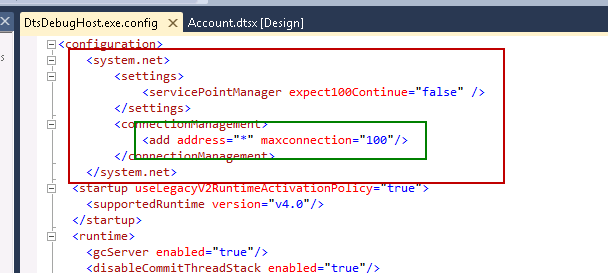
Note also that SSIS restricts parallel connections to 2 by default. This means that even if you split the CRM call to multiple threads, only 2 will start and rest will wait. This limit can be increased by adding maxconnection setting in:

  • DTSDebugHost.exe.config (when running from VS/BIDS)
  • DTSHost.exe.config (when running a deployed package)

CRM Data Integration Performance Testing in Dynamics CRM

Environment batchsize parallel average speed
Test 1 – 2 Core

1000

1

220k
Test 1 – 2 Core

1000

2

400k
Test 1 – 2 Core

1000

3

700k
Test 1 – 2 Core

1000

4

900k
Test 1 – 2 Core

1000

5

800k
Test 1 – 2 Core

1000

10

860k
Test 2 – 8 Core

1000

4

900k
Test 2 – 8 Core

1000

8

1250k
Test 2 – 8 Core

1000

10

1200k
Test 3 – Online

1000

1

200-300k
Test 3 – Online

1000

2

400-500k

Observations:

  • CRM Online actually seemed faster than on-prem CRM server with 1 and 2 parallel operations. There did seem to be more fluctuations on the performance however so keep the reservations when regarding this result.
  • Even if slow CRM server only had 2 cores, it continued getting good performance from additional parallel operations, up to 4 where it plateaued.
  • 8 core server and 2 core server were similar performance from 1-4 parallel operations, but 8 core server continued getting performance up to 8 parallel operations. The fastest integration average was about 1.2 million records in an hour.

Tools

The tools tested were:

  • SSIS with script component
  • SSIS with KingsWaySoft Adapter
  • Scribe Online

This test was done against CRM Online test organization, creating custom entity records with batch size of 1000.

Tool batchsize parallel Records/hour
SSIS with script component

1000

1

300k
SSIS with script component

1000

2

550k
SSIS with KingsWaySoft Adapter

1000

1

300k
SSIS with KingsWaySoft Adapter

1000

2

500k
Scribe Online

1000

1

200-300k

Observations:

Since the tests were not run enough times, the error margins would be fairly high. However, keeping this in mind, the observations are:

  • SSIS with script component and KingsWaySoft were identical within the error margin.
  • Scribe Online had mostly comparable performance as well, but seemed to fluctuate more.
  • Scribe Online is not trivial to run in parallel, like SSIS is. Therefore, I only included test with 1.

Conclusions

Obviously the results published here have merely scratched the surface on what happens when we optimize integration packages. But it is clear that a lot of thought has to go into optimizing the environment, the design and the use of tools in order to get the fastest possible integration.

In general, there is not a huge difference on the optimal performance between the tools that are used. Mainly the difference comes from how they can be used to handle the aspects of integrations that slow it down or speed it up, such as batch sizes, parallelism, lookups, optionsets, etc.

Also, many times improvements on certain areas will not be beneficial until the actual bottleneck is solved. Very often the performance of SQL server is not an issue for integration, generally the CRM server and the limitations of the web services will bottleneck the operations enough that improvements on SQL server will have only marginal benefit. Only at the very high end, with the 8-core physical server and 8+ parallel operations we were seeing SQL server having any considerable utilization.

Whether it is our CRM bookblogs or webinars, we are always striving to bring you the best in Dynamics CRM education. Make sure to keep checking back as our materials continue to grow. And remember… Happy CRM’ing!

The post CRM Data Integration Performance Testing in Dynamics CRM appeared first on PowerObjects.

Viewing all 98 articles
Browse latest View live