Quantcast
Channel: Troubleshooting - PowerObjects
Viewing all 98 articles
Browse latest View live

Solution for Deployment Manager Error after UR 17 in Dynamics CRM 2011

$
0
0

After applying the Update Roll-up 17 in Microsoft Dynamics CRM 2011, you may run into an error when opening the Deployment Manager. This is what  the prompt with the deployment manager error after UR 17 looks like:

Type is not resolved for member ‘Microsoft.Crm.CrmSecurityException,Microsoft.Crm.Core

Solution for Deployment Manager Error after UR 17 in Dynamics CRM 2011


Solution for Deployment Manager Error after UR 17 in Dynamics CRM 2011


This is a known issue with UR 17 that can appear if the FQDN of your Domain Controller is more than 15 Characters (i.e. domaincontroller.contoso.com).

Luckily, there is a Hotfix! It isn’t publicly available, but you can get it by opening a ticket with Microsoft Technical Support. Or if you are a PowerObjects customer, open a ticket through our PowerCare Portal and we’ll be more than happy to work with Microsoft on your behalf to resolve the issue.

If you have any other questions please head over to our blog or to our education section to keep up to date on all things Microsoft Dynamics CRM. Happy CRM’ing!


The post Solution for Deployment Manager Error after UR 17 in Dynamics CRM 2011 appeared first on PowerObjects.


How to Open a Dynamics CRM XML File on a Windows 8 or 8.1 Device

$
0
0

Suppose you have a fancy new Windows 8 or 8.1 (“Blue”) laptop. You are digging the slick user interface of Dynamics CRM 2013 but need to export some data to Excel for some offline calculations.

But, snag! Excel isn’t one of the choices you can pick to export the data for some reason. You might pick Word since you don’t recognize the other ones. But then you’ll get some weird-looking code stuff; not pretty! So you try again.

Dang, it’s stuck opening in Word and now you can’t do what you need to do!

Here’s how to fix it so that it opens in Excel instead:

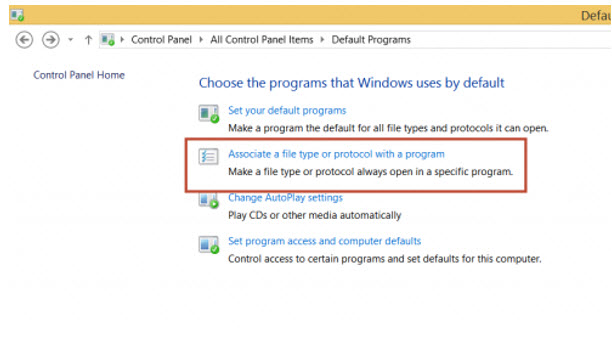
  1. Either search for File Extension on your computer or go to Control Panel>Default Programs>Set Association

2. Scroll down until you get to the .xml file extension.
3. Select it.
4. Click the Change program button.

How to open a Dynamics CRM XML file on a Windows 8  or 8.1 Device

5. In the window that opens, scroll down until you see Excel or, if it’s not in the list, click More options.

How to open a Dynamics CRM XML file on a Windows 8  or 8.1 Device

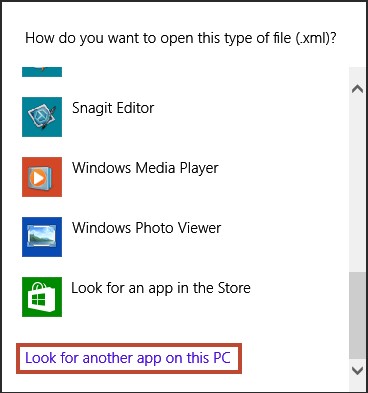
6. If Excel still is not in the list, scroll down again and click Look for another app on this PC.

How to open a Dynamics CRM XML file on a Windows 8  or 8.1 Device

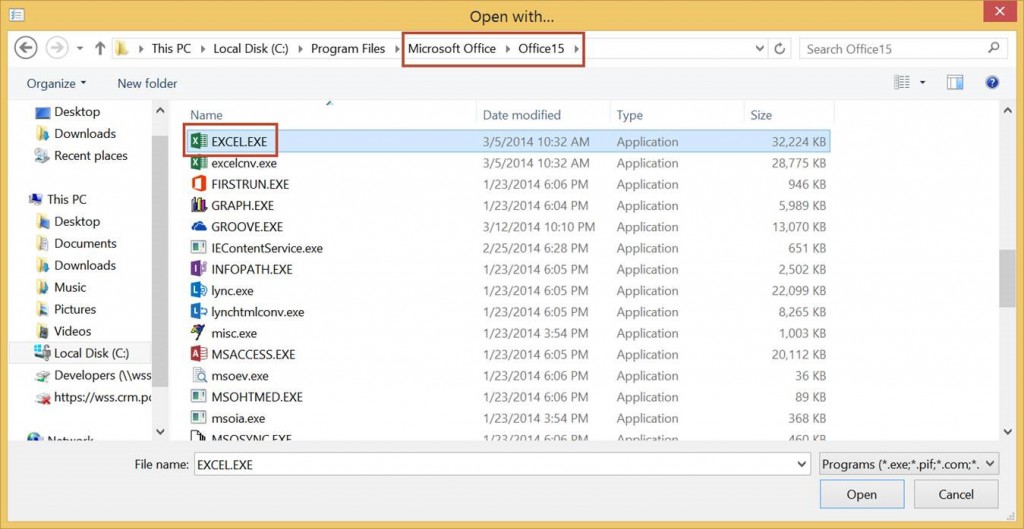
7. An Open with dialog box will open; double click on Microsoft Office, Office15 (or whatever version of Office you happen to have), then EXCEL.EXE.

How to open a Dynamics CRM XML file on a Windows 8  or 8.1 Device

Congratulations! Now you can export from (or import data to) CRM in Excel from your Window 8 or 8.1 device. We invite you to explore our other educational materials or check out our multitude of other blogs posts!

Happy CRM’ing!


The post How to Open a Dynamics CRM XML File on a Windows 8 or 8.1 Device appeared first on PowerObjects.

Dynamics CRM Error: Importing Solutions – An Error has Occurred {1}{0}

$
0
0

You may encounter an issue when importing a solution into a one or more Dynamics CRM 2013 organizations across a single deployment. This is where the error generated in the CRM Front End Application Event Log indicates that there is not enough disk space, but you have plenty of room on the hard drive to save your solution.

CRM Exception: Message: An unexpected error occurred., ErrorCode: -2147220970, InnerException: System.IO.IOException: There is not enough space on the disk.


Dynamics CRM Error: Importing Solutions - An Error has Occurred {1}{0}

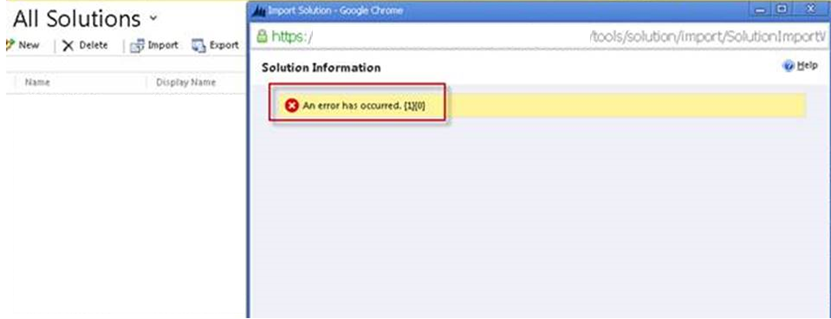
The actual error message reads “An error has occurred. {1}{0}”.

Check the CRM folder location: SystemDrive:\Program Files\Microsoft Dynamics CRM\CustomizationImport

This is used to process data imports. Simply archiving/deleting the contents of this folder location should resolve the issue. You may also want to implement a maintenance script to remove the contents of this folder on a regular basis, to prevent the issue from recurring.

Hopefully this will save you some headache if you encounter this error. Remember to subscribe to our Dynamics CRM blog as we are constantly adding new content, and if you ever need CRM assistance, our support team is always here to help!

Happy CRM’ing!


The post Dynamics CRM Error: Importing Solutions – An Error has Occurred {1}{0} appeared first on PowerObjects.

Import of Solution Fails Without Error Message in Dynamics CRM

$
0
0

If you’ve ever imported a solution before, the worst is when it doesn’t import properly. Normally, CRM would give you a nice error within the error log regarding what went wrong. Usually there are easy fixes for the issues, such as missing or invalid dependencies or invalid plugin/plugin steps, but, panic ensues when there is no error message in the import solution wizard!

If you ever encounter this error, one of the first things you should check is the SQL server, specifically SQL Replication jobs; as this may be the source of the problem. When you try to import a solution and that solution as well as the SQL Replication job are using the same data, the solution will fail without any specific error referencing the replication job. Unfortunately SQL Replication is not supported with CRM, as it causes changes to the database schema. In a recent case, we saw a replication job that had monitors on SQL views that were changing with this solution, thus when the import wizard tried to drop and recreate the views with additional fields, SQL server would not let it happen.

Once you delete the SQL replication job, the import of the solution will go without error.

To ensure you don’t have similar issues, make sure your developers are aware that SQL server Replication jobs are unsupported and they should instead look at CRM’s API for replication of data fields or records. If they are looking for a broader synchronization scope (i.e. more data) they would need to look at a custom solution tailored to fit their needs, such as SSIS.

In instances where these steps do not resolve the issue, we would encourage you to reach out to our support team as there may be additional issues causing the solution import failure. We hope you enjoyed this blog! For more information, check out our Dynamics CRM education department for even more knowledge!

Happy CRM’ing!

The post Import of Solution Fails Without Error Message in Dynamics CRM appeared first on PowerObjects.

How to Utilize the Problem Steps Recorder for Windows

$
0
0

What is Problem Steps Recorder and why would you want to use it? PSR is a useful tool which allows you to capture every step of a process. As an example of its utility: if you get a repeated error message, you can start PSR and then record each step while you recreate the error.

  1. In Windows 8 and 8.1 Search for “PSR”
    How to Utilize the Problem Steps Recorder for Windows
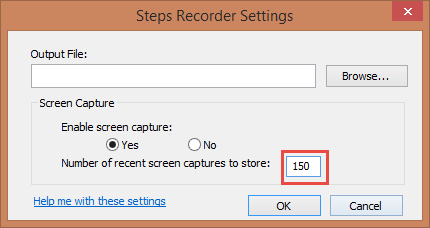
    1. This is the main window. Click the down arrow and select settings to increase how many screenshots it will take.
      How to Utilize the Problem Steps Recorder for Windows
    2. The default is 30. Set it to the maximum of 150. This resets every time, so always remember to increase the maximum number of screenshots. *Windows 7 default 25 and max1
      How to Utilize the Problem Steps Recorder for Windows
    3. Click Start RecordHow to Utilize the Problem Steps Recorder for Windows
    4. These are your options while recording:How to Utilize the Problem Steps Recorder for Windows derek5
  • Pause – interrupt your recording if you need to move things around without taking a screenshot of each step
  • Stop – When finished recording, click Stop. Concludes the recording and allows you to review the steps captured
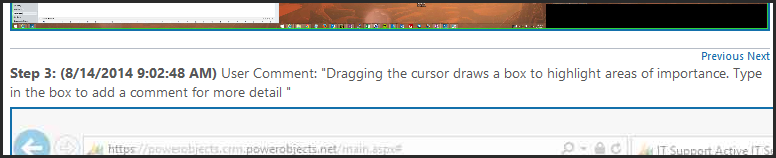
  • Comment – allows you to draw a highlighting box and type a comment. Useful for providing extra detail and/or drawing attention to a specific area

    How to Utilize the Problem Steps Recorder for Windows

All monitors will be displayed by default. To display only one monitor, you need to disconnect the other monitors through your display settings prior to starting a Recording.

6. Review recorded steps. Click on an image to expand it to full size

How to Utilize the Problem Steps Recorder for Windows

7. Save the document, then share it with a colleague or attach it to a support ticket

How to Utilize the Problem Steps Recorder for Windows

At the end of the day using this tool will help you tell the story of an error you are running into, or the process you want someone to follow click for click! This is super helpful for Support teams or IT errors. Head on over to our Support page for even more great information!

The post How to Utilize the Problem Steps Recorder for Windows appeared first on PowerObjects.

Troubleshooting Plug-in Assembly Error When Importing a Solution in Dynamics CRM

$
0
0

Importing a solution in Dynamics CRM usually goes off without a hitch. There are times though when the error reported is not easy to decipher. The error below is an example of one of them. The error was displayed as the solution failed to import.

Initial attempts to ensure that the plugin assembly and steps where included in the solution were performed but re-attempts at importing continue to fail.

One of the things to look our for during continuous development is code clean up or changes. This may be a renaming of a class name or the removal of a class all together from the assembly.

With the error above it was tough to determine exactly what about the plugin was different. In this particular case a class was removed from the plugin assembly, so when importing into the new environment CRM had an issue updating the assembly and reported the above error.

One way to determine if anything has changed is to compare the classes in the assembly using the plugin registration tool. It is probably the fastest way to identify what is registered in the source system and will give you the ability to connect to the destination system to correct the problem.

Note: In the latest SDK to Plugin Registration Tool is located under SDK\Tools\PluginRegistration

In this case the fix was to unregister the removed class of the assembly from the destination. Once complete a re-attempt to import the CRM solution was done and then imported successfully.

We hope you enjoyed our blog! For more information head on over to our main blog page or our CRM 2015 page for all the latest updates!

Happy CRM’ing!

The post Troubleshooting Plug-in Assembly Error When Importing a Solution in Dynamics CRM appeared first on PowerObjects.

Changing the Form Layout in Dynamics CRM

$
0
0

During your time with Dynamics CRM, you may have encountered an issue that when the form was expanded to full size, an empty section appeared to be visible on the far right hand size as shown below.

Changing the Form Layout in Dynamics CRM


To resolve this issue, you need to change the Maximum Width in the display tab of the Form Properties. By increasing the Max Width to 2300 pixcels, the issue will be fixed!

Here are the steps:

  1. Go to Settings à Customizations à Customize the System
  2. Expand Entities (in Left Navigation Pane) àExpand Entity à Forms
  3. Open the formà Click on Form properties

Changing the Form Layout in Dynamics CRM

4. Open Display tabà Change the Max Width. (2300 pixcels had fixed the issue)


Changing the Form Layout in Dynamics CRM

We hope this helped! For even more Dynamics CRM fun, check out our Education pages or stop by our main blog page!

Happy CRM’ing!

The post Changing the Form Layout in Dynamics CRM appeared first on PowerObjects.

Workaround: Show Company Name in Lead Views in Dynamics CRM

$
0
0

For an undetermined length of time, there has been a bug detected in Microsoft Dynamics CRM when you are using Advanced Find for Searching CRM. You will find that you cannot see the Company Name when adding columns to the Lead view.

Workaround: Show Company Name in Lead Views in Dynamics CRM

This bug has been reported to Microsoft, and we are here to tell that while that is being looked into…there is a workaround! The column is simply hidden and there’s a little trick to get it back.

1. In the same Add Columns screen, sort the field by Name:

Workaround: Show Company Name in Lead Views in Dynamics CRM

2. Okay, now change the Record Type to “Parent Account for lead (Account)” and sort by Type:

Workaround: Show Company Name in Lead Views in Dynamics CRM

3. Change the Record Type back to “Lead” and sort by Name:


4. There it is! Company Name! You can now select it and add it into your View:

Workaround: Show Company Name in Lead Views in Dynamics CRM

You will have to do this for any of the Lead Views when you want to have the Company Name shown, but after only a few clicks, you have a View that gives a lot more useful information than you had previous!

To vote for this bug to be fixed or to post additional bugs and feature requests for Microsoft Dynamics CRM, visit this website!

Happy CRM’ing!

The post Workaround: Show Company Name in Lead Views in Dynamics CRM appeared first on PowerObjects.


What to do When: The ‘Set As Default’ button for Dashboards disappears in Dynamics CRM

$
0
0

The ‘SET AS DEFAULT’ button in the ribbon on the Dashboard page is not often used, but is very important. After going through the trouble of Creating a New Dashboard you naturally want to see it every time you open CRM right? What if you go to click ‘SET AS DEFAULT’ and find that it’s not there?

Sometimes when you Change Your Home Page in Personal Options the ‘Set as Default” button behavior changes. In our example below we have changed the home page to Service because that’s what we use the most. When we first log in and when we click the home icon we go to the Dashboards tab of Service.

What to do When: The ‘Set As Default’ button for Dashboards disappears in Dynamics CRM

You can see that ‘SET AS DEFAULT’ is still an option on the Service Dashboards tab.

What to do When: The ‘Set As Default’ button for Dashboards disappears in Dynamics CRM

However, we are system admins and we just created a new Personal Sales dashboard that we want to see when we navigate to Sales. ‘SET AS DEFAULT’ is gone!

What to do When: The ‘Set As Default’ button for Dashboards disappears in Dynamics CRM

And even if we want to change the default dashboard to one of the out of the box dashboards provided by Microsoft, we are unable to do so.

What to do When: The ‘Set As Default’ button for Dashboards disappears in Dynamics CRM

One solution is to change the home page in Personal Options to Sales, and change it back after you’ve set the default Sales dashboard. If you want to change the default dashboard for Marketing or Service you have to change the Default Pane accordingly.

What to do When: The ‘Set As Default’ button for Dashboards disappears in Dynamics CRM

Want to learn more about dashboards? Did you know you can integrate dashboards with PowerPacks? If you are interested head over to our main PowerPack page or check out these two blogs!

Happy CRM’ing!

The post What to do When: The ‘Set As Default’ button for Dashboards disappears in Dynamics CRM appeared first on PowerObjects.

Access Is Denied: How to Identify and Fix a Security Role Issue

$
0
0

As a Microsoft Dynamics CRM administrator, you may run into issues where end-users do a certain action and receive an error message regarding permissions like the one below:

Access Is Denied: How to Identify and Fix a Security Role Issue

Access Is Denied

You do not have enough privileges to access the Microsoft Dynamics CRM object or preform the requested operation. For more information, contact your Microsoft Dynamics CRM administrator.

It tells them to contact you, so it’s your lucky day. This message means that whatever action was being performed, the security role assigned to the user performing the action does not have adequate privileges. Now YOU need to determine what exactly the user does not have access to do.

Now you have three options:

1. Give the user the System Administrator role. This is not recommended, but it will give you a very quick fix.

2. Use your best judgment to determine what right are missing. Sometimes this is the best way. For example, if a user attempts to save a contact they don’t own, and they have user-only write access to contacts, you may know right away what rights are missing without doing further trouble-shooting.

BUT if they are saving a type of record that has multiple relationships and lookups, this method would become increasingly inefficient. After a couple tries you might want to move to option 3.

3. Download the log file and determine the missing privilege.

When option #2 doesn’t work and you just don’t feel like playing whack-a-mole with security role privileges, your best option will be to read the log file and find out exactly what is missing. Don’t worry – you don’t have to be a coder or overly techy to read a log file! CRM does a very nice job of laying out what privilege is missing, by listing two key items: the entity type, and the rights type.

Let’s start with a simple example. Imagine a user with the following security role:

Access Is Denied: How to Identify and Fix a Security Role Issue

As you can see, this user does not have the permissions to delete orders. If they try to do so, they will receive an “Access is Denied” message. If they click download log file, you will see the following:

<OrganizationServiceFault xmlns:i=”http://www.w3.org/2001/XMLSchema-instance” xmlns=”http://schemas.microsoft.com/xrm/2011/Contracts”>

<ErrorCode>-2147220970</ErrorCode>

<ErrorDetails xmlns:d2p1=”http://schemas.datacontract.org/2004/07/System.Collections.Generic” />

<Message>System.Web.HttpUnhandledException: Microsoft Dynamics CRM has experienced an error. Reference number for administrators or support: #C0133EE3</Message>

<Timestamp>2014-07-28T13:52:14.9767207Z</Timestamp>

<InnerFault>

<ErrorCode>-2147187962</ErrorCode>

<ErrorDetails xmlns:d3p1=”http://schemas.datacontract.org/2004/07/System.Collections.Generic” />

<Message>SecLib::AccessCheckEx failed. Returned hr = -2147187962, ObjectID: 8bd4de8b-5a16-e411-80c2-00155dcfd317, OwnerId: 15f85c02-6dd1-e311-80bb-00155dcfd318, OwnerIdType: 8 and CallingUser: 67fb54d8-6dd1-e311-80bb-00155dcfd318. ObjectTypeCode: 1088, objectBusinessUnitId: 1292bfc5-b0f9-e311-80c1-00155dcfd317, AccessRights: DeleteAccess </Message>

<Timestamp>2014-07-28T13:52:14.9767207Z</Timestamp>

<InnerFault i:nil=”true” />

<TraceText i:nil=”true” />

</InnerFault>

<TraceText i:nil=”true” />

</OrganizationServiceFault>


Yikes! What is all that junk? Fortunately, it becomes easy to recognize and understand this with just a little additional info on what it all means. You only need to pay attention to two things from this entire message: the ObjectTypeCode, and the AccessRights. Let’s take a closer look at that log file, and look at those two items again:

<Message>SecLib::AccessCheckEx failed. Returned hr = -2147187962, ObjectID: 8bd4de8b-5a16-e411-80c2-00155dcfd317, OwnerId: 15f85c02-6dd1-e311-80bb-00155dcfd318, OwnerIdType: 8 and CallingUser: 67fb54d8-6dd1-e311-80bb-00155dcfd318. ObjectTypeCode: 1088, objectBusinessUnitId: 1292bfc5-b0f9-e311-80c1-00155dcfd317, AccessRights: DeleteAccess </Message>

<Timestamp>2014-07-28T13:52:14.9767207Z</Timestamp>


The access rights should be self-evident: this message from CRM is saying the missing rights is Delete Access. But what about ObjectTypeCode? What does that even mean? How is 1088 going to help me?

Simply put, ObjectTypeCode is the numerical representation of a CRM entity or item. Fortunately, Microsoft has a listing of all ObjectTypeCodes that come with CRM. If you do a search in this page for “1088”, you will see that it refers to “SalesOrder,” which is the Order entity.

Therefore, the log file that we downloaded contains the information that the user is missing Delete rights (AccessRights: DeleteAccess) for the Order entity (ObjectTypeCode 1088).

So now let’s try a more complicated example, using custom entities.

I have a user that reported an error creating this record:

Access Is Denied: How to Identify and Fix a Security Role Issue

I then asked him for the log file, and he sent me this:

Unhandled Exception: System.ServiceModel.FaultException`1[[Microsoft.Xrm.Sdk.OrganizationServiceFault, Microsoft.Xrm.Sdk, Version=6.0.0.0, Culture=neutral, PublicKeyToken=31bf3856ad364e35]]: SecLib::AccessCheckEx failed. Returned hr = -2147187962, ObjectID: f2188e1a-85a1-e411-9423-00155dcfc00d, OwnerId: 60b7716d-b866-e411-941d-00155dcfc126, OwnerIdType: 8 and CallingUser: ca8f4a13-8ca1-e411-9423-00155dcfc00d. ObjectTypeCode: 10085, objectBusinessUnitId: 41f74f5e-b666-e411-941d-00155dcfc126, AccessRights: AppendToAccess Detail:

<OrganizationServiceFault xmlns:i=”http://www.w3.org/2001/XMLSchema-instance” xmlns=”http://schemas.microsoft.com/xrm/2011/Contracts”>

<ErrorCode>-2147187962</ErrorCode>

<ErrorDetails xmlns:d2p1=”http://schemas.datacontract.org/2004/07/System.Collections.Generic”>

<KeyValuePairOfstringanyType>

<d2p1:key>CallStack</d2p1:key>

<d2p1:value xmlns:d4p1=”http://www.w3.org/2001/XMLSchema” i:type=”d4p1:string”> at Microsoft.Crm.Extensibility.VersionedPluginProxyStepBase.Execute(PipelineExecutionContext context)

at Microsoft.Crm.Extensibility.Pipeline.Execute(PipelineExecutionContext context)

at Microsoft.Crm.Extensibility.MessageProcessor.Execute(PipelineExecutionContext context)

at Microsoft.Crm.Extensibility.InternalMessageDispatcher.Execute(PipelineExecutionContext context)

at Microsoft.Crm.Extensibility.ExternalMessageDispatcher.ExecuteInternal(IInProcessOrganizationServiceFactory serviceFactory, IPlatformMessageDispatcherFactory dispatcherFactory, String messageName, String requestName, Int32 primaryObjectTypeCode, Int32 secondaryObjectTypeCode, ParameterCollection fields, CorrelationToken correlationToken, CallerOriginToken originToken, UserAuth userAuth, Guid callerId, Guid transactionContextId, Int32 invocationSource, Nullable`1 requestId, Version endpointVersion)

at Microsoft.Crm.Extensibility.OrganizationSdkServiceInternal.ExecuteRequest(OrganizationRequest request, CorrelationToken correlationToken, CallerOriginToken callerOriginToken, WebServiceType serviceType, UserAuth userAuth, Guid targetUserId, OrganizationContext context, Boolean returnResponse, Boolean checkAdminMode)

at Microsoft.Crm.Extensibility.OrganizationSdkServiceInternal.ExecuteRequest(OrganizationRequest request, CorrelationToken correlationToken, CallerOriginToken callerOriginToken, WebServiceType serviceType, Boolean checkAdminMode)

at Microsoft.Crm.Extensibility.OrganizationSdkServiceInternal.Execute(OrganizationRequest request, CorrelationToken correlationToken, CallerOriginToken callerOriginToken, WebServiceType serviceType, Boolean checkAdminMode)</d2p1:value>

</KeyValuePairOfstringanyType>

</ErrorDetails>

<Message>SecLib::AccessCheckEx failed. Returned hr = -2147187962, ObjectID: f2188e1a-85a1-e411-9423-00155dcfc00d, OwnerId: 60b7716d-b866-e411-941d-00155dcfc126, OwnerIdType: 8 and CallingUser: ca8f4a13-8ca1-e411-9423-00155dcfc00d. ObjectTypeCode: 10085, objectBusinessUnitId: 41f74f5e-b666-e411-941d-00155dcfc126, AccessRights: AppendToAccess </Message>

<Timestamp>2015-01-26T16:11:49.9974893Z</Timestamp>

<InnerFault i:nil=”true” />

<TraceText i:nil=”true” />

</OrganizationServiceFault>


While it contains a lot of information, again, keep in mind we are only concerned with the AccessRights and ObjectTypeCode. Looking at the above log file, we gather the following:

ObjectTypeCode: 10085
AccessRights: AppendToAccess

Therefore, we are missing Append to rights for the entity that corresponds to ObjectTypeCode 10085. Unfortunately, we can’t use the link above from Microsoft that provides default entity type codes. Fortunately, there is an extremely easy way to find the ObjectTypeCode for any entity including custom ones without the need to access the database directly or write code. Simply navigate to the following URL:

https://mycrmorg.contoso.com/main.aspx?etc=10085&pagetype=entityrecord

Where etc=10085 is taken from the error log. So if your error message gave ObjectTypeCode = 10120, then the URL you would go to would be /main.aspx?etc=10120&pagetype=entityrecord

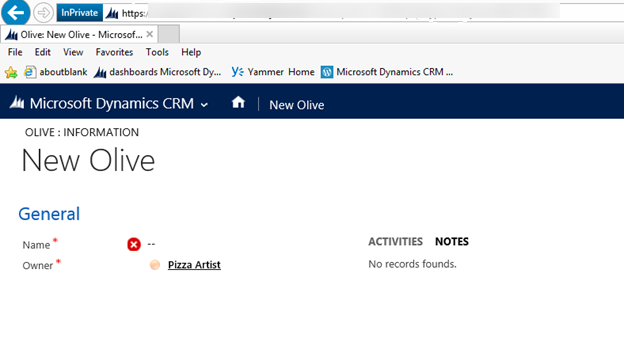
But let’s go back to the example above. If I were to go to that URL as shown above, I would see the following page:

This means that ObjectTypeCode of 10085 is the Olives entity! And since the message also mentioned we are missing Append to rights, we can conclude that the missing privilege is Append To rights for Olives.

Access Is Denied: How to Identify and Fix a Security Role Issue


Additional items to keep in mind:

  • Don’t always assign rights at will. If a user tries to delete something and they complain they are receiving an “error,” it may be easy to determine what rights they are missing to delete it. But do you really want them to?
  • When dealing with security role issues, there may be multiple missing privileges that you will troubleshoot. The log file that you download may not contain all of them at once. That means if you determine that a security role is missing append to rights for new_olive, and you grant that right, you will still receive an error if there are additional privileges missing. However, the log file you download will be updated and will contain the additional missing privilege.
  • Avoid the “try now” approach when dealing with users and create your own test user, as it can be frustrating to an end user if you tell them that it is fixed when it is not. By using your own test user and adding the same security role as the one you are trying to test, you can avoid this scenario.

We hope this helps all you Dynamics CRM admins out there! For more on topics related to this blog, we have compiled a list of similar blogs:

Happy CRM’ing!

The post Access Is Denied: How to Identify and Fix a Security Role Issue appeared first on PowerObjects.

Error Importing Organization after Update 0.1

$
0
0

Microsoft Dynamics CRM 2015 Update 0.1 has been released for on premise customers. This includes a number of small enhancements and minor fixes. For a complete list of what is included please go here:

https://support.microsoft.com/en-us/kb/3010990

Should you update?

At this time, there is a potential issue with importing backups of existing organizations. We recommend that you do not install the update if importing backups is a critical function of your organization.

Understanding the Issue

After the update, in Deployment Manager, when importing backups or copies of any CRM organization you may see this error: Could not find stored procedure ‘p_CreateAuditEntry’

This error is contained in the log file:

16:28:30| Error| Error while updating organization information: System.Data.SqlClient.SqlException (0x80131904): Could not find stored procedure ‘p_CreateAuditEntry’.

at System.Data.SqlClient.SqlConnection.OnError(SqlException exception, Boolean breakConnection, Action`1 wrapCloseInAction)

at System.Data.SqlClient.TdsParser.ThrowExceptionAndWarning(TdsParserStateObject stateObj, Boolean callerHasConnectionLock, Boolean asyncClose)

Solution

We have a ticket open with Microsoft and are working on a workaround and will post here as soon as one is found. In the meantime, if importing backups of existing organizations is a critical function in your existing process we recommend delaying installation of Update 0.1 for Microsoft Dynamics CRM 2015.


Happy CRM’ing!

The post Error Importing Organization after Update 0.1 appeared first on .

SDK Message with Id {} Does Not Exist and an Alternative Fix

$
0
0

Just a quick post today to help out anyone who might be encountering an error when attempting to import a solution to Microsoft Dynamics CRM 2013. The error in question that we’ll talk about today reads:

SDK Message with Id {} Does Not Exist

This error may occur when you import a solution that contains processes. It was encountered on CRM 2013 with SP1 and after UR1 was applied.

As you can imagine, getting this error prevents the solution from being imported. There are some suggestions to create a solution with the offending process and modify the XML, but these may not work if you have custom actions.

The alternative fix we came up with was to completely delete all processes from the solution in the target environment and re-import. This may not be ideal, especially if you are pushing to a production environment, but it will let you get the latest solution before Microsoft releases a fix. Microsoft has stated that the fix will either be in UR3 or UR4.

Note: Always perform a backup of CRM before you attempt any changes!

Hopefully this helps you temporarily bypass any roadblocks with importing solutions.

Happy CRM’ing!

The post SDK Message with Id {} Does Not Exist and an Alternative Fix appeared first on .

Troubleshooting Tips: Why isn’t my Business Rule Working?

$
0
0
Business Rules in Dynamics CRM offer a quick and easy way to create functionality out-of-the-box, and in many instances, eliminates the need for expensive custom coding and development that would be required in previous versions of Dynamics. Though simple to create and manage, there are some scenarios when a business

Modifying the Root Business Unit: Workaround for a 2015 SP1 Bug

$
0
0
A bug exists in CRM 2015 SP1 that prevents users from modifying the root Business Unit because the parent Business Unit is required but it has no value. In today’s blog, we will go over the steps needed to work around this issue. Let’s begin! In this example CRM organization,

Resolving the CRM for Outlook Permissions Error

$
0
0
Microsoft Dynamics CRM for Outlook (also known as the Outlook client) integrates seamlessly with Microsoft Outlook and can take the way your company does business to a new level of productivity! With that being said, it can be tricky at times to set up if you haven’t followed the installation

CRM 2015 Update 0.2 Troubleshooting: Help! I can’t import solutions that contain business rules!

$
0
0

Did you install the 0.2 update for CRM 2015? Do any of the entities in your solution contain a business rule? After installing the update, did you find yourself saying “Help! My solution failed to import and says there is a process that is missing, but I know there isn’t!” If this is you, then today’s blog has all the answers you need!

This error with business rules is a known bug for the 0.2 CRM update. The bug impacts any solution that contains business rules. When you try to import a solution containing business rules, the solution import will fail due to those business rules. Yikes. No one likes that.

Here is an example of the error message when importing a solution:

“The required record was not found or you do not have sufficient permissions to view it.”

A possible, but risky, workaround is to delete the business rule(s) in the target CRM you are importing the solution to. After the import, recreate those business rule(s) in the target CRM. Did we mention you might want to back-up your CRM database before doing this? Sounds a little dicey, right?

Microsoft says this issue will be fixed in the 0.3 update so keep your fingers crossed!

Don’t want to wait until the 0.3 update with the fix for this issue? Good news! Microsoft has a hotfix for this. Whoop whoop. You can contact Microsoft for assistance in getting the hotfix.

Curious about taking the plunge and upgrading to Dynamics CRM 2016? Check out some of the new features that come with the latest version of Dynamics CRM by watching this segment of The CRM Minute, our weekly video blog series!

Happy CRM’ing!

Why Don’t I See Address Fields on the CRM Import Template?

$
0
0

If you are responsible for importing data into CRM, a convenient way to do so is to use the Download Template for Import option. Clicking on this button will yield an XML file which can be opened in Excel, and will display the fields for your chosen entity. Here you can enter or paste new records into each respective row, placing the specific data into matching columns. However, you may have wondered why the address fields do not appear in the XML document. Today’s blog has the answer!

Address Fields

From a technical standpoint, the reason for this omission is that the template only includes fields that write directly to the database. A popular out-of-the-box field to place on out-of-the-box entities is the Composite Address field. On the form, a composite address looks like this:

Address Fields

Upon data entry on the form, a composite address will appear as shown in the image below:

Address Fields

This is great because it keeps the form clean and doesn’t take up much space. However, the composite address is actually writing to the address fields in the database. If your forms on a given entity only contain the Composite Address field, without the address fields appearing separately on any of the forms, then they will not be contained within the Import Template. There are two workarounds for this problem. One option is to add the address fields to a form and to hide them. Or, if you have a form that is only accessed by administrators, allow the address fields to take the place of the Composite Address field on that form, which will look something like this:

Address Fields

That’s all for the blog today! Did you know that PowerObjects hosts a wide variety of educational webinars, trainings, boot camps, and more, all focused on helping you get the most out of your Dynamics CRM investment. You can view the list of upcoming events here!

Happy CRM’ing!

Workflow Generated Email stuck in “Pending Send” – Get it sent!

$
0
0

If you have a custom workflow email stuck in CRM with a status reason of “Pending Send,” then today’s blog is for you! Today we’ll show you how to get your custom workflow emails to send. Let’s dive in!

Whenever your email is stuck in “pending send” status, you should always complete the initial steps for troubleshooting the email send issue, including:

1. Checking if the mailbox is approved in CRM

2. Checking the email router service

3. Checking if the user has been disabled

4. And checking if the user has been able to send other email messages out of CRM.

If you are still experiencing issues and your workflow generated email is still not sending, there might be another issue afoot!

Let’s say you created a workflow where your goal is to send the email from CRM after a custom plugin populates the email body with content first (see example below).


In this workflow, you completed the following steps:

1. Create the email.

2. Have the custom workflow plugin populate the email body.

3. Change the email record status to “Pending Send.”

Setting the email record status to “Pending Send” will indicate to the email router or SSS that this message is ready and waiting to send. While this is absolutely true, it’s only half of the solution we need to have CRM send the email.

The critical piece to get our custom workflow email to send is setting the value of the “No. of Delivery Attempts” field to 0. You can find this field in the properties of the “Create Email” step of the workflow. Setting attempts to 0 will trigger the process for your email router or SSS to pick up and send the message from CRM.


With this in mind, your workflow should be configured as such:

1. Create the email and update the “No. of Delivery Attempts” field on the email record to 0.

2. Have the custom workflow plugin populate the email body.

3. Change the email record status to “Pending Send.”

Workflows are a great tool for automating actions like sending email in Dynamics CRM.

Workflows in CRM are a great way to use CRM for marketing automation as well. Want to learn more about marketing automation and CRM? Watch our video, Marketing 101 with Dynamics CRM!

Happy CRM’ing!

Flash Fix Friday: Dynamics CRM 2016 Email Router Error

$
0
0
CRM 2016 Email Router

Houston, we have a problem. If you’ve tried to install the Dynamics CRM 2016 Email Router and got an error message, today’s blog has the fix!

Issue: After installing the 2016 Email Router and attempting to load data, this error message is displayed:

CRM 2016 Email Router

Fix: This error is being caused because the install of the Microsoft Online Sign-in Assistant is out of date. In this case, the version that is installed with the Email Router is version 7.250.4303.0, but the latest version is 7.250.4556.0. To fix the error, simply install the latest version and you’ll be good to go!

Here’s what the out-of-date version of Sign-in Assistant looks like:

CRM 2016 Email Router

And here’s the updated version of Sign-In Assistant:

CRM 2016 Email Router

To get the most up-to-date version of Sign-in Assistant, download here. That’s all for the blog today! Want to learn more about emailing and Dynamics CRM? Check out our free Webinar on Demand, CRM On-the-Go with Outlook!

Happy CRM’ing!

Don’t Delete Your Configuration Data! Use Real-time Workflows Instead

$
0
0
Real-time Workflows

Picture this scenario. After weighing the pros and cons between filtered lookups vs. dependent option sets for States/Provinces and Country entities, your organization decides to go with filtered lookups. You’ve entered in your configuration data for both State/Province and Country entities and used the Configuration Migration Tool to make the data (and their GUIDs) match between your environments. Great!

Real-time Workflows

But, as a CRM System Administrator, you still have the ability to delete that configuration data, which breaks all of the workflows, business rules, views, dashboards, and other items that depend on that data. Yikes!

Real-time Workflows

Fortunately, there is a quick out-of-the-box way to help stop yourself from accidentally making life harder while maintaining the ability to delete when you truly need to do so, and in today’s blog, we will show you how! Let’s begin!

1. First, create a real-time workflow that is triggered ONLY before delete.
Real-time Workflows

2. In the workflow designer, click Add Step and then select Stop Workflow.

3. In the stop workflow clause, change the status to Canceled and then click Set Properties.
Real-time Workflows

4. In the window that opens, you can write yourself a note, including steps on how to actually delete the data when it’s got to go.

5. Save, Activate, then test it out!

Bonus: If you have cascading delete on a Parent entity, this workflow will stop both the Parent and the Child entities’ records from being deleted!
Real-time Workflows

That’s it! You’ve now stopped the deletion of configuration data and have prevented yourself from having to “start over” with your GUID-reliant configurations. That’s a win in our book!

That’s all for the blog today! Got a little more time for CRM? Go ahead and check out our entire library of Webinars on Demand. It’s CRM anywhere, anytime!

Happy CRM’ing!

Viewing all 98 articles
Browse latest View live