Quantcast
Channel: Troubleshooting - PowerObjects
Viewing all 98 articles
Browse latest View live

Make a Field Required in a Dynamics CRM Dialog

$
0
0

Have you ever needed to make a Prompt and Response field required when designing Dialog? Currently, there is no out-of-the-box functionality to set a Prompt and Response field required in a Microsoft Dynamics CRM 2011, 2013, or 2015 Dialog. Thankfully, you can easily work-around this by using Child Dialogs! In today’s blog, we will give you the steps needed for this workaround. Let’s get started!

1. Starting in a newly created Dialog, (make sure you already have added a Page and the Prompt and Response that you would like to make required) first verify that the Dialog is set to run “As an on-demand process” and “As a child process”.

Dynamics CRM Dialog

2. Select the Page containing the required Prompt and Response field and add a Check Condition step.

Dynamics CRM Dialog

Notes: Build your If condition to check the Prompt and Response value. You can access your Prompt and Response value under Local Values when specifying your If condition. Your “If” condition should also check to see if it does not contain data. For refrence in getting this set up, visit The CRM Book.

Dynamics CRM Dialog

3. Now that we have our If condition set, our Dialog looks like this:

Dynamics CRM Dialog

4. Under the Check Condition step, click “Select this row and click Add Step” and add a Link Child Dialog step.

Dynamics CRM Dialog

6. In the Link Child Dialog setup, select the current Dialog to creating a loop until the Prompt and Response has data. This will effectively make the prompt and response field required.

Dynamics CRM Dialog

7. Time to test! Save and Activate the Dialog.

8. Next, navigate to the appropriate record and run the Dialog.

Dynamics CRM Dialog

9. With no data in the Dialog,click the Next button. You will notice that the dialog does not proceed.

10. Enter data into your field and click Next. You are now presented with the next page in your dialog.

Thank you for stopping by our blog today!

Happy CRM’ing!


Opening a “Blocked” Export to Excel File in Dynamics CRM

$
0
0
Export to Excel

Have you ever run into an issue when using the Export to Excel feature within Microsoft Dynamics CRM where the file successfully exports, but does not open in Excel? If so, today’s blog will show you two easy steps to fix this issue. Let’s dive in!

1. Manually remove the block on the downloaded file.
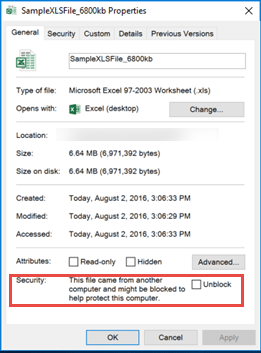
One possible cause may be that your browser is placing a “block” on the Excel file downloaded from CRM. The block can be manually removed by going into the file’s properties (right-click the file) and checking “Unblock” at the bottom of the General tab.

Export to Excel

2. Add your CRM’s URL to the list of trusted sites.
Changing the Trusted Sites settings to include your CRM URL will allow you to save future files without a block. You can do this in Excel by going to File > Options > Trust Center > Trust Center Settings > Trusted Locations > Add new location, and then enter your CRM’s URL as a trusted file source.

Export to Excel

These two quick troubleshooting tips should resolve any sudden changes to your ability to export to Excel from CRM. If you want to learn more about the Export to Excel feature, check out our blog on understanding the difference between Static Worksheet and Static Worksheet (Page Only).

Happy CRM’ing!


Dynamics 365 OAuth Endpoint Deprecation – Error Message

$
0
0
Dynamics 365 OAuth Endpoint

After the release of update 1 to Dynamics 365 (Dynamics CRM Online 2016), you may see an error when attempting to access the OAuth endpoint. Today’s blog will help you learn why this error is occurring and how to work around the issue.

The Error Message
ACS50000: There was an error issuing a token. ACS50001: Relying party with identifier ‘https://instance.api.crm.dynamics.com/‘ was not found.

Why the Error?
Microsoft has made a change to the way third-party applications connect and authenticate to the Dynamics 365 and CRM 2016 programmatically. This change involves the deprecation of the traditional OAuth endpoint that has been around since CRM 2011 in lieu of a new Web API that offers support for a greater array of programming languages, platforms, and devices. With the newest update issued to Dynamics 365 (formerly Dynamics CRM Online) in 8.1.0.362 and CRM Microsoft Dynamics CRM 2016 Service Pack 1 in 8.1.0, the OAuth endpoint is considered deprecated, but not officially unsupported.

The Solution
With that in mind, it is possible to request a temporary workaround be granted to the organization which can allow the developer(s) time to update their code to utilize the new Web API. The workaround involves submitting a ticket with Microsoft requesting the endpoint be added. There are a few things to note with this type of request. The Support Engineer that will be assigned to the support request will need to raise an internal ticket with their infrastructure team to request the endpoint be added. This request can take a few days before it is complete. In addition, each time you refresh your sandbox organization, you will need to submit a request to have performed again. If you would prefer, you can also open a support request with our PowerObjects Support Team and we can assist in getting this taken care of for you by working with Microsoft.

Below, you will find some helpful links regarding articles published by Microsoft on this subject:

Walkthrough: Update a service endpoint from ACS to SAS authorization: https://msdn.microsoft.com/en-us/library/mt728940.aspx

Azure integration with Microsoft Dynamics 365: https://msdn.microsoft.com/en-us/library/gg334766.aspx

Updates to the Dynamics 365 SDK assemblies: https://msdn.microsoft.com/library/dn281891.aspx#bkmk_assemblyUpdates

Release history for SDK Version 8.2.0, November 2016: https://msdn.microsoft.com/en-us/library/dn481567.aspx#bkmk_820

Happy Dynamics 365’ing!

Going On-Premise: A CRM Post-Upgrade Checklist for SSRS

$
0
0
Upgrade Checklist for SSRS

Upgrading CRM On-Premise has become an almost routine procedure over the past few years. Despite well-managed compatibility both forward and backwards, sometimes On-Premise’s uncommonly used entities fall through the cracks during the process, causing potential for significant problems in production environments. To save you from searching through multiple help pages, we’ve complied a checklist of common issues and fixes in today’s blog!

Let’s go through an example. Say you just upgraded and a report is scheduled to run on the first day of the next month and then be left alone. All is good and well but then for some reason the scheduled report snapshots are not generated. What’s going on?

Further investigation leads to the discovery of three issues that could be considered residual of the systems upgrade. Solutions are found by sifting through similar cases and exceptions posted on different help sites on the internet. This blog combines a few of these issues into a check-list that can supplement every CRM upgrade and configuration procedure.

Permission to the SSRS Execution Account

The first exception we needed to tackle was related to permissions. Specifically, the SSRS execution account must be able to execute MSCRM_CONFIG.dbo.p_GetCrmUserId stored procedure. It does not matter how you grant this permission, but it is worth checking to make sure it is in place. If it is not, you will see some deceiving reports behavior and inconclusive diagnostics in the SSRS logs.

Note: Check if the SSRS execution account is granted ‘Execute’ permission on MSCRM_CONFIG.dbo.p_GetCrmUserId and grant it as needed.

Snapshot Isolation Mode of SSRS Database

The next exception was even more deceiving because it was generic and showed only on a few scheduled report executions. No direct correlation was found, but it cleared after the following patch was run on the SSRS database:

ALTER DATABASE reportserver$crm

SET ALLOW_SNAPSHOT_ISOLATION OFF;

ALTER DATABASE reportserver$crmtempdb

SET ALLOW_SNAPSHOT_ISOLATION OFF;

ALTER DATABASE reportserver$crm

SET READ_COMMITTED_SNAPSHOT OFF;

ALTER DATABASE reportserver$crmtempdb

SET READ_COMMITTED_SNAPSHOT OFF;

Essentially, after the SQL upgrade, the new SSRS database had the snapshot isolation mode turned on. If you know the specific reasons for keeping it this way then you probably do not need to read this post. Otherwise, this patch allowed me to proceed to the next exception.

Note: Switch your SSRS server snapshot isolation mode OFF.

ReportingServicesService.exe.config

The last exception was related to a simple incompatibility of the .NET binding. SSRS web service has configuration stored in web.config while the Reporting Service stores it in a different file named ReportingServicesService.exe.config. Both configurations must have the following part in runtime.assemblyBinding section:

<dependentAssembly>

<assemblyIdentity name=”Microsoft.Crm.Reporting.RdlHelper” publicKeyToken=”31bf3856ad364e35″ culture=”neutral” />

<bindingRedirect oldVersion=”5.0.0.0″ newVersion=”8.0.0.0″ />

<bindingRedirect oldVersion=”6.0.0.0″ newVersion=”8.0.0.0″ />

<bindingRedirect oldVersion=”7.0.0.0″ newVersion=”8.0.0.0″ />

</dependentAssembly>

This will ensure compatibility of the reports compiled with the previous versions of RdlHelper with the latest one installed with the update.*

*This assumes the correct target version of the installed DLL which increments along with the version of CRM and SSRS.

Note: Check the proper binding redirects for RdlHelper in service and web application configs.

Overall, applying and verifying these suggested changes can help you avoid some common misconfigurations. These fixes do not replace the diligent testing needed for each report in the system, but they may help you substantially decrease the time it takes to investigate unknown issues you may have while performing CRM upgrades.

To learn more, tune in for our upcoming webinar series on CRM of Dynamics 365:

CRM for Dynamics 365: What’s New Overview 
Thursday, January 5, 1:00-1:30 pm

Service CRM for Dynamics 365: What’s New in Field Service
Tuesday, January 10, 1:00-1:30 pm

CRM for Dynamics 365: App for Outlook 
Thursday, January 12, 1:00-1:30 pm

CRM for Dynamics 365: Relationship Insights
Tuesday, January 17, 1:00-1:30 pm

CRM for Dynamics 365: Mobile Features
Thursday, January 19, 1:00-1:30 pm

CRM for Dynamics 365: What’s New in Portals
Tuesday, January 24, 1:00-1:30 pm

CRM for Dynamics 365: Designing the User Experience
Thursday, January 26, 1:00-1:30 pm

CRM for Dynamics 365: Learning Paths
Tuesday, January 31, 1:00-1:30 pm

CRM for Dynamics 365: What’s New in Project Service
Thursday, February 2, 1:00-1:30 pm

Happy CRM’ing!

Troubleshooting Solution Import Errors

$
0
0

Remember when CRM life was so much simpler that solutions did not yet exist? If you had separate development and production environments and you wanted to move your customizations, you simply clicked Export Customizations and voila! It was done. Those were the days.

Nostalgia Warning – in case you’ve forgotten, here’s a screenshot to jog your memory:

With CRM 2011, the concept of solutions was introduced, giving us a new set of powers – by picking individual entities, workflows, etc., we now had the ability to group together and move only those customizations we wanted to include in our solution. The next great solutions advancement came with CRM 2016: we can now select specific components within each individual entity – so instead of moving the entire contact entity, for example, we have the option of moving only a certain view or field within the entity. And we can do this without having to hack the xml in the zip file.

(By the way, if you want to learn more about solutions, please have a look at our CRM Book: http://crmbook.powerobjects.com/system-administration/customization/solutions/)

But as wonderfully advanced as the CRM solutions concept is, it also has the potential to cause some serious headaches – failed imports, error messages, etc. – when certain things are even slightly amiss. With that in mind, in today’s blog, we will try to ease those headaches by providing you a what-to-do guide for when things don’t go so smoothly. We hope this helps ensure that you will always be able to successfully import your solution into an environment.

But hey, one quick warning: while we strived to make this guide as helpful as possible, dealing with CRM solution import issues can sometimes become quite time-consuming, especially when it requires you to look at XML code. We’ll try our best to guide everyone in this blog, but if you ever feel like you’re in over your head, please contact us – we’re here to help!

Dependency Issues caused by Managed Solutions

The solution import process is quite simple. Under “Settings” / “Solutions,” click Import, as shown below.

Select the zip file of your Solution, and click Import. At this point, Microsoft Dynamics will calculate the solution.xml file and check that all dependent components are included for the import process. If a missing dependency is found, the next screen will display a dependency error, and you will not be able to import your solution until the missing components are addressed.

Often, if you are importing a solution that came from a different CRM org, a dependency error is caused by a Managed Solution that exists in the source CRM but not in the target. For example, let’s say you have two environments: development (dev) and production (prod). You create a solution in dev called “Email,” add the email entity, and export it. But when you try to import it in prod, you receive the following error during the dependency check:

At first glance, it may seem daunting to fix a laundry list of dependency errors for a successful import. However, when we take a closer look at the “Managed Solution” column, we see that all the error rows indicate either PowerEmail or PowerSurveyPlus. In this example, it’s because both PowerEmail and PowerSurveyPlus are Managed Solutions that exist in dev but not in prod. To resolve this issue, we need to simply import both PowerEmail and PowerSurveyPlus into prod before importing our “Email” Solution.

So, as far as Managed Solution components go, always remember that they cannot be exported via an Unmanaged Solution. And to export from one CRM org or environment into another, we always recommend that the same Managed Solutions that exist in your source also exist in your target.

Other Dependency Issues

Looking at the same example above, let’s say we imported both necessary PowerPacks into our prod environment and then tried to import the “Email” Solution one more time. Again we failed the dependency check, though this time, the error screen contains just one item:

What does this mean? Here, we begin by looking at the last column, “Required by,” which is formatted as follows: “Component (Entity).” In our example, it’s telling us that the “Email” component within the email entity requires a component that does not exist. Next, we look at the “Type” field – since it is Web Resource, we can deduce that the “E-mail” refers to our form called E-mail, which contains a reference to a web resource called new_email_js_lib (from the “Name/Id” field) that has not been included in our solution.

To successfully import this solution, we will need to add the web resource mentioned in the error screen (new_email_js_lib), export it again, and then try another import.

There are lots of other types of dependency errors that could occur when you don’t include the necessary components in the solutions, including:

  • A field that uses a global option set.
  • A system view that references newly-added fields.
  • Forms that contains newly-added fields.
  • A form that contains a non-existent quick view form.
  • A site map that contains newly-added components.
  • Forms or Business Process Flows that include missing security roles.

Thankfully, the message displayed is usually very helpful in telling us what is missing, as well as why it is needed. Back to the E-mail example above: we fixed our problem by including the missing web resource. But what would be another way for us to import the solution if we didn’t want to move that web resource? Well, since the only dependency in our example is required by the E-mail form, we can simply exclude that form from the solution.

Invalid XML

Another error you may receive after selecting the zip file of your solution and clicking Import is: “This solution package cannot be imported because it contains invalid XML.”

The most likely reason for this error is that someone previously edited the customization.xml file incorrectly, resulting in bad XML code. Often, it is as simple as an error in the capitalization of an identifier, a basic typo, or having a missing or invalid tag. To find out where the error is, look at the error screen and hover your mouse over “Technical Details.” This is actually a link that takes you to a page showing more detailed information. Clicking on the link will reveal something similar to this:

In this example, we have a typo when specifying our cascade relationships: “NoCas1cade.” This is the result of someone manually editing an XML file and mistyping something. This can be easily corrected by opening the customization.xml file within the zip file (covered below), searching for the typo, and correcting it. Of course, not all fixes are as easily identifiable as this example.

The Log File

Note: inside the solution zip file, there exist several files. One is “solution.xml,” which contains a list of dependencies required before the import can be attempted. However, this file isn’t foolproof, as there is still a possibility that a dependency is missing but is not listed in the solution.xml file. When this is the case, it results in the initial dependency check succeeding, allowing you to attempt to import the file. However, it will then fail the import, and an error log will be generated.

Besides dependencies, additional errors can occur during an import. When you first select your zip file and click Import, a progress indicator will appear. In the event of an error, the changes included in the solution file to that progress point will not be applied, and you will have the option to download the log file.

Click on Download Log File, which will result in an XML file – be sure to open it in Microsoft Excel.

WARNING! Any time you deal with XML (or any other code, for that matter), always tread carefully and always make a backup copy before doing any edits. Simply right-click the zip file and copy it. That way, you will have a backup ready to be re-imported if any problems arise during your editing process.

The Excel file will contain two tabs. The first tab, called Solution, will contain some basic information:

The second tab, called Components, will contain detailed information about each individual item being processed for import.

This is what we will use to identify issues and determine necessary fixes. The “Status” column will list the components successfully processed before the error occurred. Subsequent components after the failure will remain unprocessed, since the first failure causes CRM to stop processing. In this way, it is easy to identify the source of the error, though there is also a downside: there may still be more issues, but we can only catch one at a time.

Our troubleshooting process will involve looking at the “ErrorCode” column. Based on the message from the screenshot above, the message received in our example is:

“An item with the same key has already been added.”

Some of the error codes are straightforward and to the point, while others require more digging. And on occasion, you will need to make edits to the XML files inside the zip file. Don’t worry: you don’t necessarily need to be an XML expert to work through some of these issues, though for a non-developer, simply looking at code can often be challenging work. However, if you are a CRM administrator, once you get the hang of looking at CRM XML, it will become increasingly familiar each subsequent time. Oh, and one quick and super-important tip: remember that XML is always case-sensitive!

Let’s have a look at different error codes you can receive in this log file, beginning with the example above.

An item with the same key has already been added.

Stated simply, with this error CRM is telling you that you’re trying to create an item that already exists. Unfortunately, this is one of the more generic error messages, so it isn’t always super helpful. However, the good news is that often, this happens for one of two reasons: the field already exists in CRM but is a different type, or it is the same type but the schema is capitalized differently. Let’s look at two examples that show how each issue can happen.

Example 1: there exists a field (type = text) in your contact entity called “new_ShoeSize.” You then attempt to import a solution that includes a field (type = whole number) with the exact name, “new_ShoeSize.” CRM will attempt to create a new field, but will error out because this name – or key, as referenced in the error code – is already taken.

Example 2: let’s say you have the same text field, “new_ShoeSize,” and this time you are importing a solution where the field is also of type text, but the schema of that field is all lower case: “new_shoesize.” This will result in the same error occurring. CRM will recognize that you have a new field called “new_shoesize,” but when it tries to create it, it will find that the name already exists.

Something to keep in mind is that similar types of problems may ultimately result in different ErrorCode readings. For example, capitalization differences in the schema (as described in Example 2 above) may, depending on your CRM version among other things, actually result in different error codes! Argh, right? Well, we hope to cover all of them in this guide. Remember that as long as you are able to start with an error code – any error code, you can usually identify your problem and possible fix.

The ‘XX’ attribute is not declared.

This error message refers to something in the customizations.xml file that CRM does not recognize as valid. For example, an import could error out with the message, “The ‘Label’ attribute is not declared,” followed by “validation failed at …” and then a sample of the XML file where the error occurs.

This means that when the solution file was created, something CRM can’t process (an undeclared variable) was inadvertently included. To fix it, we will need to examine the customization.xml file to remove the offending part of code. Let’s say you downloaded the log file and saw this message:

The import file is invalid. XSD validation failed with the following error: ‘The ‘label’ attribute is not declared.’. The validation failed at: ‘…ition></filter></filter></filter><attribute name=”scheduledend” /></link-entity><attribute name=”po_duedate” /><attribute name=”objectid” /></entity></fetch></fetchxml><IntroducedVersion>5.0.0.0</IntroducedVersion><LocalizedNames><LocalizedName description=”(Activities) Available to Work On” languagecode=”1033″ /></LocalizedNames></savedquery><savedquery><isquickfindquery>0</isquickfindquery><isprivate>0</isprivate><isdefault>0</isdefault><returnedtypecode>2029</returnedtypecode><savedqueryid>{3e3ca60a-9732-48bd-b16f-f4682eff6f67}</savedqueryid><queryapi></queryapi><layoutxml><grid name=”queueitems” object=”2029″ jump=”title” select=”1″ icon=”1″ preview=”1″><row name=”queueitem” id=”objectid” multiobjectidfield=”objecttypecode”><cell name=”title” width=”300″ /><cell name=”enteredon” width=”140″ /><cell name=”queueid” width=”150″ /><cell name=”workerid” width=”150″ /><cell name=”casealias.prioritycode” width=”150″ LabelId=”query.7F554701-0D30-413B-8B21-555C58DB2C32.cell.Priority.label” <<<<<ERROR LOCATION>>>>> label=”Priority (Case)” /><cell name=”casealias.po_duedate” width=”100″ disableSorting=”1″ /><cell name=”casealias.responseby” width=”150″ LabelId=”query.487576AC-2E92-4E0E-B29D-AD1028F05A4F.cell.ResponseBy.label” label=”Response By (Case)” /><cell name=”casealias.resolveby” width=”150″ LabelId=”query.8657D594-2737-448E-961C-08A7ABB71AD9.cell.ResolveBy.label” label=”Resolve By (Case)” /><cell name=”casealias.new_bpstage” width=”200″ disableSorting=”1″ /><cell name=”casealias.po_dateofservice” width=”100″ disableSorting=”1″ /><cell name=”queueitemid” ishidden=”1″ width=”100″ /></row></grid></layoutxml><querytype>0</querytype><fetchxml><fetch distinct=”false” mapping=”logical”><entity name=”queueitem”><attribute name=”title” /><attribute name=”enteredon” /><attribute name=”objecttypecode” /><attribute name=”queueid” /><attribute name=”workerid” /><filter type=”and”><condition attribute=”statecode” operator=”eq” value=”0″ /><condition attribute=”objecttypecode” operator=”eq” value=”112″ /…’.”

Look at the error location, which identifies the spot just before the error. Since the error message states that “label” attribute is not declared, we know the error being generated is due to the very next statement:

label” <<<<<ERROR LOCATION>>>>> label=”Priority (Case)” /><cell name

But wait, if it’s bad code, why is it there in the first place? Possibly your CRM was upgraded from a previous version and there is deprecated code, though it could really be for any number of reasons. The bottom line is that we need to remove it:

  1. Extract customizations.xml from the zip file.
  2. Open it with your favorite text editor, such as notepad.
  3. Search for the error you received. In this example, you would search for label=”Priority (Case)” and then delete it.
  4. Save the file.
  5. Copy it back to the zip file and it will be ready for another import attempt.

Now, don’t get mad, but here’s where it gets even trickier. If you look at the entire error message shown above, you may notice that there are further recurrences of “label=.” Recall that we stated earlier that CRM will fail on the first error and not attempt to process it further, potentially masking additional errors? Well, this is one of those times. In our case, each of the highlighted references will eventually error out during import attempts:

label=”Priority (Case)” /><cell name=”casealias.po_duedate” width=”100″ disableSorting=”1″ /><cell name=”casealias.responseby” width=”150″ LabelId=”query.487576AC-2E92-4E0E-B29D-AD1028F05A4F.cell.ResponseBy.label” label=”Response By (Case)” /><cell name=”casealias.resolveby” width=”150″ LabelId=”query.8657D594-2737-448E-961C-08A7ABB71AD9.cell.ResolveBy.label” label=”Resolve By (Case)” /><cell name=”casealias.new_bpstage” width=”200″ disableSorting=”1″ /><cell name=”casealias.po_dateofservice” width=”100″ disableSorting=”1″ /><cell name=”queueitemid” ishidden=”1″ width=”100″ /></row></grid></layoutxml><querytype>0</querytype><fetchxml><fetch distinct=”false” mapping=”logical”><entity name=”queueitem”><attribute name=”title” /><attribute name=”enteredon” /><attribute name=”objecttypecode” /><attribute name=”queueid”

Further complicating matters is that this error message is only a snippet of the entire customization.xml file, so this error may have several more occurrences, as well. Your options are twofold: fix each error one at a time and try to import after every fix, or review the entire customization.xml file, doing a one-time clean-up of anything that matches the errors shown above. While the second option is definitely faster, please be absolutely certain that you are editing the correct things – don’t inadvertently remove or change something you shouldn’t have! So, if you are still new to this, our recommendation is to do the first method, and just change one piece at a time, until you are sufficiently familiar with solutions content to take a stab at the second option.

Cannot import security role. The role with specified role id is not updatable or role name is not unique.

This message states CRM found a security role name that already exists. You cannot have a duplicate security role name, so if you receive this message, simply find the duplicate security role name(s) that already exist(s) in the target environment.

When you locate the duplicates, if they have different GUIDs (meaning they were created manually in both environments), then you will not be able to import the solution until one of the security roles has been uniquely renamed.

The dependent component XX does not exist.

During the initial import, it is possible that a dependency will not be caught, allowing you to begin the import. If so, you may receive a message similar to the one below:

The dependent component EntityRelationship (Id=po_campaign_po_satisfactionsurvey) does not exist. Failure trying to associate it with SystemForm (Id=5c2404c5-69ed-4633-a193-0852d38f732a) as a dependency. Missing dependency lookup type = PrimaryNameLookup.

To fix this this issue, you will need to examine the error message in more detail. Our example above shows that a relationship is needed for a form that we are importing – likely, it is referenced in the related items, but does not exist in the target system. So, we would just need to add it to our solution if we want the form to be imported.

The label XX already exists. Supply unique labelid values.

There is likely a duplicated ID on the customization.xml file, and we will need to remove it. Let’s say our error message was as follows:

The label ‘Summary’, id: ‘c706accd-f53f-46f5-a254-b64766269216’ already exists. Supply unique labelid values.

We will need to search the customization.xml file for this id, and we will likely see it twice in the same section. However it was created, it will not be possible to import until one of them is removed.

Please exercise caution when removing this, so that you only remove the necessary part. This seems like a good time to reiterate the importance of making a backup copy of your customization.xml file before you begin editing. Please do it!

Transaction (Process ID #) was deadlocked on lock resources with another process and has been chosen as the deadlock victim. Rerun the transaction.

This is an infrastructure-related issue, likely the cause of another process acting on CRM that resulted in a conflict – for example, when multiple users attempt an import at once, or when other integrations/backups are running that result in a conflict for back-end resources.

Fortunately, this issue is typically resolved by just trying it again. However, for an on-premises environment, if you receive this message, we recommend checking with a systems administrator first to determine whether there are any other jobs impacting the SQL environment. It may be in your best interest to delay the import until a time where any running jobs have completed, instead of immediately trying the import again.

The import file is invalid. XSD validation failed with the following error:

You will see this error code if the customization.xml file was edited and contains errors. There could be many causes and variations of this error code. Here is one we saw not too long ago:

The import file is invalid. XSD validation failed with the following error: ‘The ‘labelid’ attribute is invalid – The value ‘{ddcee403-c32b-459f-a4f5- 20e23fb32eb0}’ is invalid according to its datatype ‘FormGuidType’ – The Pattern constraint failed.’. The validation failed at:

As you can see, the GUID shown above is an incorrect format because it contains a space. The obvious lesson here is to always be careful when editing code!

Plug-in assembly does not contain the required types or assembly content cannot be updated.

There are two general causes for this error – either the solution file includes a plugin that is missing some additional items, or something is preventing the target CRM plugin from being updated. If it is the first issue, then the solution file will need to be recreated with the correct components, since the plugin is malformed.

If the plugin is fine, but you are still getting this message, then the problem is that it is failing to update/overwrite the existing plugin. Some options are:

  • Change the existing plugin to “isolation mode = none,” in case it is a security issue.
  • Delete the existing plugin, since you will be reimporting it with the solution file.

Error occurred while fetching the report.

This essentially means CRM is not able to find a place to add the report, so you may have to do some troubleshooting on the report server for an on-premises environment. Some things to check are:

  • Is the report server running?
  • Do other reports work? Be sure to try standard and custom reports.
  • Can the report server URL be accessed from the CRM server?

An alternate solution is to just exclude the report from the solution file.

The ribbon item XX is dependent on ribbon control id=YY

This is another dependency-related error, although this one is specific to the ribbon, and it likely means you have a corrupted form. So, the problem itself is not the solution being imported, but rather the forms/entities the solution touches. In order to fix this, you will need to either edit the ribbon XML or use a ribbon editor, and examine the ribbon control in question.

For this problem, we advise seeking help from a developer (or PowerObjects!) since it may take quite a bit of troubleshooting.

Here’s one example of this error: you have a button with a hide function. Then, somehow, the hide function gets removed, but the button is still there, and it still contains a reference to your function. One possible fix is to recreate the same function, which will enable you to make changes to your button – to either remove it or fix it.

Once this is done, you will be able to make changes to your form (and import your solution).

Required parameter XX is not found for control YY.

This means that within one of the control tags, CRM is expecting another tag, but does not find it. The fix will involve looking further at the message, and adding the necessary tag. Here is one example:

Required parameter QuickForms is not found for control <control id=”Interests” classid=”{5C5600E0-1D6E-4205-A272-BE80DA87FD42}” datafieldname=”po_postedform” disabled=”false”><parameters><ControlMode>Edit</ControlMode></parameters></control>.

Within the “Interests” definition, it is expecting a tag for <QuickForms> but does not find it, and your fix will be to add an additional tag for QuickForms.

The wait operation timed out.

This error indicates that the import took too long and exceeded the time-out value allowed by Dynamics 365. This is performance-related, and may occur when you are importing processes – components that rely on the Microsoft Dynamics CRM Asynchronous service. You may want to simply try the solution import again to see if it works.

Otherwise, for a CRM Online environment, our recommendation is for you to open a ticket with Microsoft.

For an on-premises environment, there are two suggestions:

You may also simply retry the same import at a later time. Note: CRM performance is a separate discussion altogether. Please spend some time researching this before attempting any changes. The following MS blog will provide some background on different time-out values that you can set:

https://blogs.msdn.microsoft.com/crminthefield/2011/06/13/microsoft-dynamics-crm-timeout-settings/

Column names in each table must be unique. Column name X in table Y is specified more than once.

This error is nearly identical to “An item with the same key has already been added,” which we covered earlier. It involves a field that already exists in the target environment but with different capitalization.

A previous blog covered exactly how to solve this particular error:

http://www.powerobjects.com/2013/07/01/importing-solution-in-crm-2011-field-is-not-unique-error/

EntityMap XX – Import: failure. This entity map does not exist on the target system.

This is simply a fancy way of saying you forgot to add a relationship to your solution. To find out more about this error, examine the customization.xml file once more. Let’s say this is the error message you received:

EntityMap po_employment -> incident – Import: FAILURE. This entity map does not exist on the target system.

In the customization.xml file, scroll down until you reach the <entitymap> section, where you may see something like this:

<EntityMap>
<EntitySource>po_employment</EntitySource>
<EntityTarget>incident</EntityTarget>
<AttributeMaps />
</EntityMap>

This is the piece of the file that CRM reads and does not like, because the relationship itself does not exist in the target environment. The fix is simple: go back to your original solution, and add the missing relationship, as shown below:

Cannot add a Root Component X of type Y because it is not in the target system.

This is also a dependency-related problem. To investigate, you will need to know to what component it is referring. First, let’s figure out the type. The “type” in this error points to the entity code, which you can learn about here:

https://msdn.microsoft.com/en-us/library/mt608054.aspx

So if your message says it can’t find a root component of type 24, for example, it is referring to a Form; if it is 20, then it’s a Role, and so forth, as described in the linked-to page above.

The root component will be a GUID, which you will need to look for in the customization.xml file. Once you find it, it will take a deeper review of the file to determine how to either remove the component block from the file to re-import it, or to get the missing component into the solution or environment. Sorry, but for this issue, you will need some amount of proficiency in reading XML, since there is no clear-cut solution without doing some investigating.

Should be exactly 1 MessageProcessingStep registered for workflow.

We’ve seen this problem occur a few times, and it is the result of a process activation record that has been duplicated.

To better understand this error, here is a brief overview of how CRM processes (workflows) work:

You create a new workflow, and add some steps. This creates a new record of type process, where category = workflow, and type = definition. Have you ever done an advanced find, and looked at the view called “Activated Processes”?

This view filters out the other “types” so you only see the actual workflows that have been created. A process can also be of type “template,” which is simply a workflow template. It can also be of type “activation.”

What is a process of type “activation”? Let’s go back to the workflow you created, currently sitting in draft mode. Once you decide to activate it, your workflow will be active. By doing this, you have just created a new process record, where the type = activation. And it is this record that CRM triggers the events defined in the workflow. When you deactivate your process, it also deactivates the other process (type = activation). Umm, yeah, it can be a bit confusing.

Getting back to the error and how it can be fixed – this error may have happened as a result of a bug or glitch that, when a workflow was activated, created more than one process of type “activation.” And it will not allow you to reimport a workflow if there are two or more activation records. In order to fix it, you will have to manually delete the activation records for this workflow so that you have no more than one.

For those in on-premises environments, we have had successful results with a SQL delete command for the activation records. Please note that this is not a Microsoft-supported method, so please take a database backup before doing this, and do it only after work hours.

For CRM online customers, we recommend working with Microsoft to remove the duplicate record, as it cannot be done from the UI.

Invalid link type for system entity cascading actions.

This is an error we saw after an update of CRM 2013, though we have not run into it since. The error refers to the cascade definitions of a relationship, and there exists a nice blog with more information about this specific error, which is caused by a system relationship that changed behavior after an update:

http://cloudxrm.blogspot.com/2014/09/invalid-link-type-for-system-entity.html

No ErrorCode Listed!

We’ve gone through a lot of different Error Codes that can be generated for different issues during solution imports, but there is one more scenario we have yet to cover. Imagine you are doing an import, you receive an error, and you download the log file. When you open it, you see something like this:

In the “Status” column, you just see Processed, Processed, Processed, and then suddenly Unprocessed. No Failure, nothing to help you. Yikes! What do you do?

Well, the likely cause is the same problem we have covered a few times in the past – when a component you are importing already exists in the target environment, but there is a capitalization mismatch.

The problem with finding out which component is leading to the problem is that you won’t be able to tell by the downloaded log file in Excel. As you can see in Row 16 above, the last ItemType processed was “Chart” from the Incident entity. But that is of no help whatsoever! The only way to find the culprit is to examine each component, one at a time. Ugh.

Trust us, we feel your pain. But one suggestion to make your job easier is to create a new solution in your source CRM, add just one entity, and try to import it. If it succeeds, keep adding additional entities until you receive the error, and then you’ll discover the entity that likely contains a field that is causing the issue. Once you narrow it down to one entity, you will have to do a comparison of all custom fields, looking for any fields that exist in both environments but with mismatched capitalization of the schema.

General Customization Tips

Most of the problems presented in our examples can be avoided by following some best practices for customizing CRM. For any production CRM environment, our recommendation is to have a separate development/uat environment where you perform your customizations. Once things have been tested, those same customizations should be moved to your production environment via solutions.

This holds true even for small changes, such as increasing a column width of a specific system view or creating a new field. While it may be tempting to create the same change directly in your other environments, which is probably faster than moving it via solutions, we do not recommend this. Doing it this way has the potential for typos and mismatches, especially related to schema capitalization, that will cause problems for future imports. Additionally, other components, such as security roles and connection roles, will have mismatched GUIDs and will also fail your future imports.

Sometimes, editing the customization.xml file is either necessary or is the best approach compared to other methods. This is ok to do – as long as you do it carefully and knowingly. And take backups! It’s so quick to do and takes up very little storage space. Just copy your zip file and save it – now you’re ready to edit!

Most of the problems mentioned in this blog can be avoided by following this process. But if all else fails, feel free to contact our support team – we are ALWAYS happy to help you.

Happy CRM’ing

Troubleshooting Security Permissions? Don’t Forget Cascading Permissions

$
0
0

If you’re a Microsoft Dynamics 365 admin, you may encounter issues where users report seeing specific records they’re certain they should not have access to. In these cases, there may not be an error message to start from, so to troubleshoot you’ll have to cover your bases from top to bottom.

Scenario: User with the Sales Person role reports they can read, write, and delete opportunities for which they are not the owner. They are certain that opportunities should only allow the user level access for all three privileges.

security permissions

Below are the common places to start when a user describes an issue such as the one reported above.

  1. Validate the user’s role. In this case, be certain that they do in fact only have user level access for the above privileges.
  2. Check the user’s team membership. Be certain that they are not part of special team that is giving them cumulative security access in addition to their base role.
  3. Validate that they are not part of an access team that is allowing them special access to the records.
  4. Check to see if the records in question have been shared with the user by another user or team in CRM.

Assume the above steps all check out, the user is not part of any teams with additional security permissions, the records have not been shared with them, and the role which is assigned to the user appears to be configured correctly. What next?

Sometimes cascading access from the parent record is overlooked. In our case, all users across the organization correctly have access to the CRM account entity. What we’re experiencing is the same level of access for all users to the opportunities, although looking at our access to the privileges (above) this should not be the case.

To validate, we’ll look at the relationship between account and opportunity. Out of the box we recognize that it is a one-to-many relationship (Account 1:N Opportunity). We can further validate the relationship behavior between the account and the opportunity. Here we’ll see that the behavior type is set to “Parental.” Because all our users can see all accounts, this is cascading down to the opportunity – despite our security role privileges telling us the user should see only their own opportunities.

To resolve this issue so that the security role may take full effect, we’ll update the relationship behavior between the account and the opportunity to “Configurable Cascading.” We’ll then set the assign, share, unshare, and reparent behaviors to “Cascade None.” Once these changes are published, all newly created opportunities will abide by the sales person security role which tells us a sales user can see only their own opportunities.

security permissions

Note: The visibility of opportunities created prior to this update will not be adjusted retroactively and all users will still have visibility to those historic opportunities.

There you have it – don’t forget about your cascading permissions! To receive our blog posts in your inbox, subscribe here!

Happy Dynamics 365’ing!

Restore from a Dynamics 365 Online Instance Backup

$
0
0

Today’s blog will walk-through how you can restore from a Dynamics 365 Online Instance backup. Specifically, we will note that the target Org does not need to be the same case as the source of the backup. It can be another existing or one that you created.

We previously detailed the steps to back up a CRM online instance. Once the backup is complete you will want to ensure that you have a target online instance available. Either identify an existing one or create a new one.

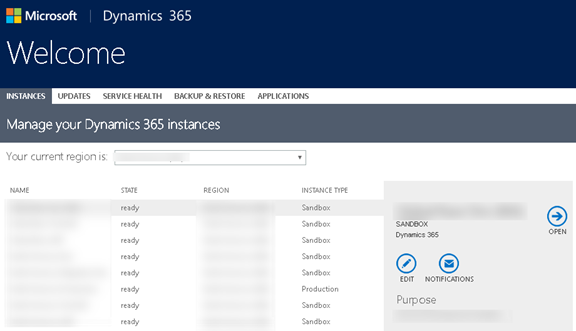
The First Step is to login into the O365 administrative portal:

https://port.crm.dynamics.com/G/Instances/InstancePicker.aspx

You will want to ensure that you first have appropriate Dynamics 365 administrative rights.

The Second Step is to identify an available target instance. If one is not available you will want to create a new one. Note, there may be an additional cost to provisioning an additional instance.

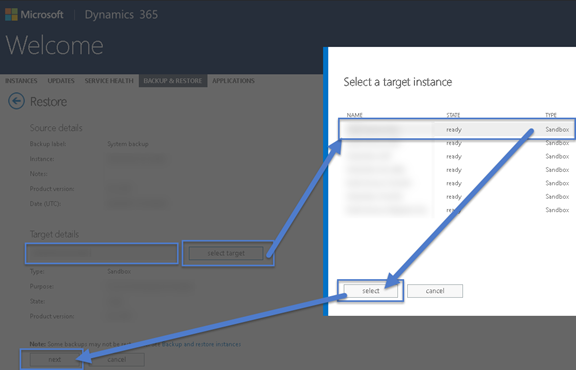
The Third Step is to navigate to the “Backup & Restore” area and identify a backup to restore from. Select the source instance from the “Backups for:” dropdown menu or create a New Backup. Select the desired backup from the list and the click the “Restore” icon.

The Fourth Step is to select a target instance. Note that only Sandbox instances are eligible to restore backups to. If the goal is to restore to a production instance you will want to first restore to a sandbox and then upgrade it to production. Click “Next” to lock in the selection.

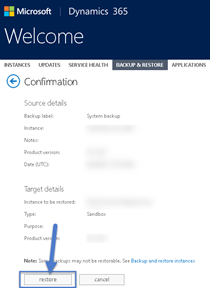
The Final Step is to confirm by clicking the “restore” button. The process will kick off and the entry in the “Instances” tab for that instance will list the instance as “ready” when complete.

Congratulations! You just restored an online backup. This is particularly helpful for multi-environments setups such as development, test, and production. It will save setup time as well as reduce the risk of losing work. Want to learn more about the latest version of Dynamics 365? Click here!

Happy Dynamics 365’ing!

How to Register a Dynamics Application with ADFS

$
0
0

During a recent project, we began developing an application that would use the WebAPI. The application is for a client that is using Dynamics 365 On-Premises. For this setup, we used ADFS 3.0 and Dynamics 365. There is a lot of documentation from Microsoft on this process, if you are familiar with CRM development there are usually some slight differences for doing things in a Dynamics Online versus On-Prem environment. However, sometimes the documentation for on-premises misses a step or two.

The majority of the steps to get an application registered with Active Directory can be found here on MSDN, we’re just missing one small detail that can cause some non-descript ADFS errors like this:

In the article, it fails to mention the fact that we need to grant Application Permissions to the application within ADFS. Fortunately, this is a pretty easy thing to do. Just open a PowerShell prompt on your ADFS server and enter the following:

Grant-AdfsApplicationPermission -ClientRoleIdentifier “clientid” -ServerRoleIdentifier “Dynamics URL” -ScopeNames openid

After running the command, you should get a token the next time that you attempt it.

Once we started using the Web API with our API testing console, we examined the token and observed that the token was not issuing a refresh token to use. Microsoft recommends refreshing the token with every call, so this was a problem. Fortunately, this was a problem that a few minutes of research could solve; see the PowerShell below to allow the issuance of the refresh token.

Set-AdfsRelyingPartyTrust -TargetName “RelyingPartyFromADFS” -IssueOAuthRefreshTokensTo AllDevices

If you’re still not receiving a refresh token as part of an authentication response after making this change, make sure that the SSOLifetime parameter is greater than the TokenLifetime by running the Get-ADFSProperties PowerShell. A refresh token will not be issued otherwise.

For more Dynamics 365 troubleshooting, how-tos, and tips – check out our blog!

Happy Dynamics 365’ing!


MISSING: Services Site Map

$
0
0

Are you missing service entities in your site map? If you recently upgraded to Dynamics 365 version 8.2 and now are missing service entities in the site map, you are not alone. Breathe easy, there is a fix; just follow the steps below!

Issue: Site Map issues (missing entities) with Service after 365 upgrade to version 8.2.

Fix: Export the Site Map, edit and reimport.

1. First, create a new solution and add the Site Map to the solution


2. Select “No, do not include required components.”

3. Select Export Solution


4. Select “Next” on all the screens, then select “Export”


5. Save the Export file then click on the file and extract contents

6. Once extracted, right click on the customization.xml file and open it with your favorite text editor


7. Search for “Area_Service


8. Insert ShowGroups=”true” to the end of the line above as shown below. *Please note: this text is case sensitive.


9. Copy the file you just edited and add it back to the zip file.

10. Import the updated solution zip file back into CRM, Save and Refresh.

Abracadabra! You should now see all of your previous Service Entities and your Site Map corrected. To receive more helpful tips for Dynamics 365, make sure you subscribe to our blog!

Happy Dynamics 365’ing!

Solution Export Error – A Known Issue

$
0
0

There was a time before solutions existed within Dynamics 365, a simpler time, no woes relating to exporting and importing customizations. You just took the whole lot or nothing at all; those were your only options. Since it was introduced in CRM 2011, solution management has evolved enormously and now provides a rich tool set for managing packages between environments. Anyone who has worked with solutions, however, will have undoubtedly ran into a few warning messages, or even errors when importing a solution.

In this blog, we’re going to tackle a specific issue with exporting a solution – let’s dig into it in detail.

The Error

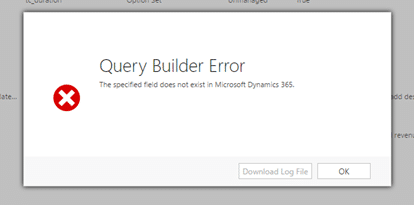
You may have carefully crafted a Dynamics 365 solution, verified all of the dependencies, and you’re ready to export the solution. Unfortunately, upon export you are eagerly awaiting a zip file to be downloaded, only to be prompted with the following error.

solution export error

“Query Builder Error – The specified field does not exist in Microsoft Dynamics 365” and no log file available for further information. Oh no!

The Cause

This is a known issue with the current release of Dynamics 365 and occurs under the following circumstances:

  1. Create a solution
  2. Add Existing entity -> Select an entity, Next and finish
  3. Create a rollup field
  4. Save the field but don’t publish
  5. Remove the field and publish
  6. Try to export the solution and you will get the above error.

We’ve also seen this occur in a number of different variations of the above sequence as well.

The Resolution

The key to resolving this issue, is finding out the identifier of the problematic roll-up field. If you know the culprit field, this isn’t too difficult – if you don’t, it can get a bit tricky as the error message shown above gives you no indication to either the name or the identifier of the field.

Thankfully, for on-premises installations, you can turn on logging, review the log files and if both the name of the attribute and ID of the attribute is logged. For online customers, a support ticket will yield the offending attribute.

With this information, a simple console application will do the trick to remove the attribute, something along the following lines.

IOrganizationService service = // create a connection to your Dynamics 365 instance

RemoveSolutionComponentRequest removeRequest = new
RemoveSolutionComponentRequest()

{


// this is the Guid you have found within your Dynamics 365 trace files

ComponentId = new
Guid(“cd08e6c2-e8cc-4a62-b339-4cbcff98992e”),

ComponentType = 2,


// This is the unique name, not the display name of the solution you are trying to export

SolutionUniqueName = “UniqueName”

};

service.Execute(removeRequest);

Once executed, try exporting the solution again, and voila! You should feel the joy of receiving your carefully crafted solution export zip file.

For troubleshooting tips – check out our blog!

Happy Dynamics 365’ing!

Power BI Data Refresh Performance

$
0
0

Performance is a critical topic that we need to consider before and after we deliver applications. In this blog, we are going to discuss a scenario where the data refresh in Power BI Service keeps failing and explain why it is happening. We will also introduce a way to reduce refresh time by about 63% in Power BI Service.

Before we continue, the following is the environment we are working with:

  • BI reports are set with daily refresh in Power BI Service with professional licenses
  • Data source from an out-of-the-box entity and a custom entity in Dynamics CRM 2016 online (8.1)
  • OData connection and oAuth2 authentication method

If you are looking for how to connect Power BI to Dynamics CRM 2016 Online, please refer to our blogs:

  1. Connect Your CRM Online Data to PowerBI for Powerful Analysis
  2. How to Connect to Dynamics 365 Data from PowerBI Desktop

In this scenario, a data refresh failed due to timeout and the error message in the Power BI Service says that the user’s credential was not recognized. Upon investigation, the user security in Dynamics 365 and the licenses in Office 365 are not the issue. There is however, a current limitation on the Azure Active Director (AAD) OAuth token that expires in approximately one hour. That is the reason why the data refresh failed in Power BI Service. It means that data refresh must be complete within 60 minutes. We verified that if the data refresh lasted more than 60 minutes, it failed in Power BI Service.

Now we must focus on why the queries created in the Power BI reports are taking over 85 minutes to complete refresh in the Power BI Desktop. The volume is 17 months of data with about 128,000 records in Case entity and 1.22 million records in custom Event entity in Dynamics 365.

The following list shows the troubleshooting items performed. There is a bulls-eye in this list that resolved the performance issue. Which one will it be?

  • PBIX file size (should be less than 250 MB)
  • Data Source Connection with Instance Web API rather than Org. Service
  • Data Source Set with OAuth2
  • User Credentials and License Type in O365
  • Security Roles in CRM
  • Editing Query (Transform Tables and Columns)
  • Relationships (Join, cross filter directions, fact-dimension tables as star-schema, the same relationships as CRM)
  • Data Types and column names
  • Selecting right unique key (GUID) columns (_value)
  • Calculated columns and DAX Measures are optimized
  • The number of visuals in reports (less than 4-8 per page)

Editing query is the answer in this scenario! Right after a data source was established in the Power BI Desktop and the entities (tables) were selected to build queries, we start applying changes in queries in the following steps:

  1. Remove Unnecessary Columns and Tables
  2. Update the Data Types
  3. Filter Data (Created on)

Power BI Data Refresh

However, we changed the steps to this:

  1. Filter Data (Created on)
  2. Remove Unnecessary Columns and Tables
  3. Updated Data Types

Power BI Data Refresh

Filtering the dataset before removing the extra columns and tables changed the data loading time significantly! The download took from 85 minutes to 44 minutes in Power BI Desktop (48% ¯ ) and the refresh time in Power BI Service took 30 minutes (63% ¯). This minor change made difference in this particular scenario.

Finally, it is also recommended testing out both cases above and choosing the best steps accordingly.

For more helpful tips and tricks, be sure to follow our blog!

Happy PowerBI’ing with Dynamics 365 data!

Field Service Mobile App: Set up and Configuration for Dynamics 365 Online

$
0
0

The Dynamics 365 for Field Service mobile app is available as a free download in app stores. For this mobile app to work with Dynamics 365 Online, certain Resco/Woodford solution installations and configurations are needed.

In this blog, we will discuss the install and set-up of a Resco Mobile CRM Woodford solution and the set-up of the Field Service Mobile project. Once the setups are completed, users of the Field Service mobile app will be able to connect it with their Dynamics 365 Online accounts. The following three steps are needed for this connectivity to happen.

Step 1

Download and install the Resco Mobile Dynamics 365 Woodford mobile solution.

1. In an Internet Explorer browser, go to: http://www.resco.net/mobilecrm/woodford.html

Please note: Microsoft Silverlight is needed for viewing this page which will work in the IE browser but not in Chrome or Edge

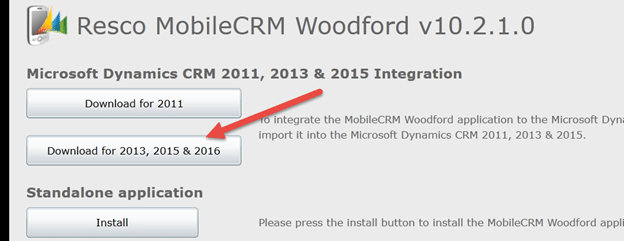
When the page opens it will look like this:

field service mobile app


2. Click on Download for 2013, 2015 & 2016, this will download a Woodford managed .zip file to your download folder.


3. Navigate to Settings in your Dynamics 365, then click on Solutions under Customization (see arrow below in the picture).

field service mobile app


This will open ‘All Solutions.’ Click on the Import icon as shown below.

field service mobile app


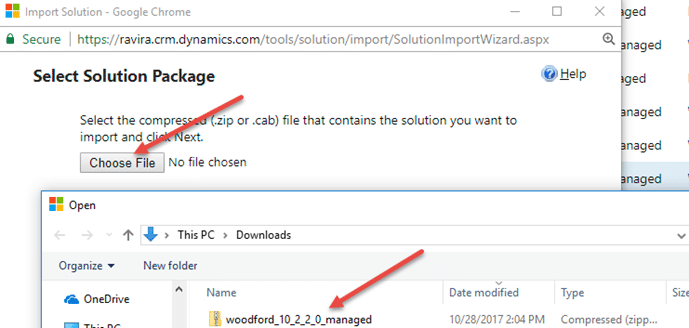
4. After clicking import, a pop up window will open. Click on choose file to select the Woodford managed zip file that was downloaded earlier. Then click Next.

field service mobile app


This will take a short time to import and upon successful completion, you will get a message “The import of solution: Resco MobileCRM Woodford Completed Successfully” as shown below.

field service mobile app


5. After a successful install, you will need to validate the following:

In the solutions folder, you will see Resco MobileCRM Woodford version as shown in picture below (version 10.2.2.0 as of this writing).

field service mobile app


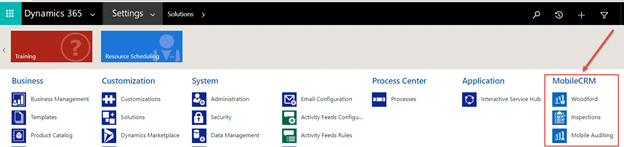
Additionally, you will see in Settings a new header called ‘MobileCRM’ with options, Woodford, Inspections, Mobile Auditing as shown below. This further indicates the install was successful.

field service mobile app


6. Now click on Woodford option and you will get a request (pop up window) to increase quota, increase the quota to 300 and click OK as shown below

field service mobile app


7. You will be asked to register the user, enter the needed details and click Register. You have now successfully installed the Woodford solution!

Step 2

Import the field service mobile project template into the Woodford solution.

Now we will need to download a template that will help us configure the mobile app. This template contains all customizations for the field service mobile app. We can use it to add, remove, change fields, entities, views, and forms.

1. For Microsoft Dynamics 365 Online, use this mobile project template. Upon clicking this hyperlink, you will be prompted to take action on CentaurusStoreVersion.woddford file. Click Save.

field service mobile app


2. Within Dynamics 365, go to Settings > Woodford, and then click Open MobileCRM Woodford. You will get a window like the one shown below, click Import here.

field service mobile app


3. Select and open the CentaurusStoreVersion.woodford file that was downloaded earlier. You will be prompted with an Add Mobile Project pop up window.


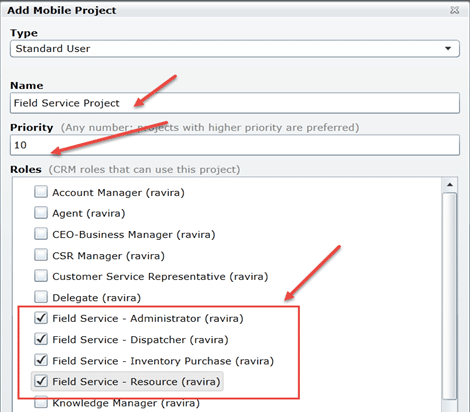
4. Provide Name, Priority and for roles, check the field service boxes as shown below, then click Ok.

field service mobile app


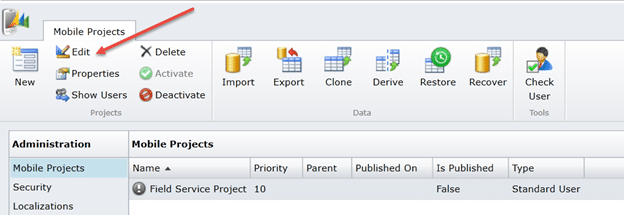
5. You will now need to click Edit.

field service mobile app


6. Select Publish All, and then click Publish as shown below.

field service mobile app

Step 3

Install the mobile app

1. Open the App store in your device and search for ‘Field Service – Dynamics 365.’ You will see the app with the truck logo as shown below. (do not select Resco or FieldOne Sky apps) Then click to install the app in your device.

field service mobile app


2. After installing on your device, open the app to establish a connection to the Dynamics 365 servers.


3. After the app opens, in the home page, click Setup. In the setup page, go to the Dynamics 365 field to enter your Dynamics 365 URL and user credentials (see picture below for home page, setup page, and sync page). Click sync. This will enable your mobile device to establish connectivity with Dynamics 365 servers.

field service mobile app


Now you’re all set up! For more helpful Dynamics 365 tips and tricks check out more of our blog posts! Learn more about how PowerObjects can assist you with Dynamics 365 for Field Service.

Happy Dynamics 365’ing!

Data Export Service: How to Handle Lookup Columns

$
0
0

In this blog, we will uncover how primary fields and look up fields are created and synchronized in the Microsoft Azure SQL Database, in a customer-owned Microsoft Azure subscription using Data Export Service.

Unlike Dynamics 365 On-Premise installations where developers and administrators have some level of control on backend databases and can facilitate an organization’s reporting with ETL teams to query data directly from a SQL server for reporting, a Dynamics 365 Online implementation does not allow users to query a CRM database directly in online environments. To overcome this challenge, Microsoft has come up with a Data Export add-on service available on Microsoft AppSource that adds the ability replicate Dynamics 365 data to an Azure SQL Database. This helps facilitate reporting and allows ETL teams to consume data for reporting and analytic purposes.

The Data Export Service add-on transforms data columns while replicating data from Dynamics 365 to an Azure SQL database. Here are a few points that need to be considered:

Get Lookup Values from the Data Export Service Database

The Data Export Service synchronizes lookup fields slightly differently in the Azure SQL database tables than in the same columns created by the Dynamics 365 on-premises database.

Data Export Service creates two columns for each lookup in Dynamics 365 as opposed to three columns in the on-premises database.

  1. <Lookupfield>ID – This column is similar to the id column created by Dynamics 365 in on-premises databases. It holds the GUID of the primary id of the referenced table
  2. <Lookupfield>_entitytype – This column holds the entity schema name of the referenced entity. This is different from Dynamics 365 on-premises database, where the database is used to store the referenced entity’s ObjectTypecode in <Lookupfield>Type column.
  3. <Lookupfield>name: Data Export Service never copies the ‘name’ column in the Azure SQL Database; so it is always empty for every lookup field.

Example: Refer to the screenshot below to compare the differences between the same CustomerId look up field created by Data Export Service in Azure SQL Database vs. the on-premises Database created by Dynamics 365.

Dynamics 365 On-Premises Database:

Data Export Service

Azure SQL Database Look up field created by Data Export Service:

Data Export Service

TargetMetadata Reference Tables for Lookup

The Data Export Service creates a TargetMetadata master table to hold all the referenced entities and attributes for lookup fields. Each row represents the lookup between the Primary (Referencing) entity and the referencing attribute to Referenced entity and attribute.

Example: The screenshot below shows all the referenced look ups for the contact entity. Here the CreatedBy on contact table is referencing the system user table’s systemuserid attribute.

Data Export Service

The Data Export Service is only available for Microsoft Dynamics 365 Online, version 8.0 and onwards.

Learn more about Microsoft Dynamics 365 in the PowerObjects blog!

Happy Dynamics 365’ing!

Record Navigation: Where Did the Arrows Go?

$
0
0

One of the many time saving navigation features within Dynamics 365 is the use of the record navigation arrows on individual records. This allows users to easily navigate up and down the record list without having to jump back to the view to open the next record in line. Another time saving feature is the editable grid control that can now be added to views within Dynamics 365. However, the two don’t always play nicely together within Dynamics 365 (Fall 2016).

When a record is opened from the grid with the editable grid control turned on, the arrows are disabled.

record navigation

record navigation

However, if you change the grid type back to Read-Only then the navigation arrows are enabled for use.

record navigation

record navigation

This conflict is resolved in the Dynamics 365 October 2017 Update (v9) but for those still using Fall 2016, this is your work around.

Check out our blog for more information about editable grids or to explore more of the new features of Dynamics 365!

Happy Dynamics 365’ing!

Dynamics 365 SSRS: Visual Studio 2015 RDL Upload Error

$
0
0

When using Visual Studio 2015 with the Dynamics 365 Authoring Toolkit there are known compatibility issues with uploading RDLs. If you have just installed and configured Visual Studio 2015 to edit Reports for Dynamics 365 but keep getting error messages, this blog may assist you.

If a user attempts to upload the saved RDL from the main project folder (example): C:\Users\wgold\Documents\Visual Studio 2015\Projects\’ProjectName’\’Project Folder’\Report.rdl the following generic error message may occur:

Dynamics 365 SSRS

In order to work around this error message:

1. Open the report solution in Visual Studio 2015.

2. Go to Project > Properties

Dynamics 365 SSRS


3. Change the ‘TargetServerVersion’ from SQL Server 2016 to SQL Server 2008 R2, 2012 or 2014 and click Apply then click OK.

Dynamics 365 SSRS

4. The Next Step is to click ‘Preview’ in the report for a copy of the RDL to be saved to the BIN\DEBUG Folder. Please note, you MUST click Preview for this to work correctly, just clicking save will not apply changes to the DEBUG Folder.

Dynamics 365 SSRS

5. Final Step – find the .RDL report file in the BIN\DEBUG Folder shown below then UPLOAD TO DYNAMICS 365!

Dynamics 365 SSRS

Dynamics 365 SSRS

Check out our blog for more troubleshooting tips and tricks!

Happy Dynamics 365’ing!


Troubleshooting Plug-in Assembly Error When Importing a Solution in Dynamics CRM

$
0
0

Importing a solution in Dynamics CRM usually goes off without a hitch. There are times though when the error reported is not easy to decipher. The error below is an example of one of them - a plug-in assembly error. The error was displayed as the solution failed to import. Initial attempts to ensure that the plugin assembly and steps where included in the solution were performed but re-attempts at...

Source

Access Is Denied: How to Identify and Fix a Security Role Issue

$
0
0

As a Microsoft Dynamics CRM administrator, you may run into issues where end-users do a certain action and receive an error message regarding permissions like the one below: Access Is Denied You do not have enough privileges to access the Microsoft Dynamics CRM object or preform the requested operation. For more information, contact your Microsoft Dynamics CRM administrator. It tells them to...

Source

Error Importing Organization after Update 0.1

$
0
0

Microsoft Dynamics CRM 2015 Update 0.1 has been released for on premise customers. This includes a number of small enhancements and minor fixes. For a complete list of what is included please go here: https://support.microsoft.com/en-us/kb/3010990 Should you update? At this time, there is a potential issue with importing backups of existing organizations. We recommend that you do not install the...

Source

SDK Message with Id {} Does Not Exist and an Alternative Fix

$
0
0

SDK message errors got you down? We've got an alternative fix to take the stress away and those errors too! Let's dive in! As you can imagine, getting this error prevents the solution from being imported. There are some suggestions to create a solution with the offending process and modify the XML, but these may not work if you have custom actions. The alternative fix we came up with was to...

Source

Troubleshooting Tips: Why isn’t my Business Rule Working?

$
0
0

Business Rules in Dynamics CRM offer a quick and easy way to create functionality out-of-the-box, and in many instances, eliminates the need for expensive custom coding and development that would be required in previous versions of Dynamics. Though simple to create and manage, there are some scenarios when a business rule isn't working as it should that can drive a System Administrator insane!

Source

Viewing all 98 articles
Browse latest View live